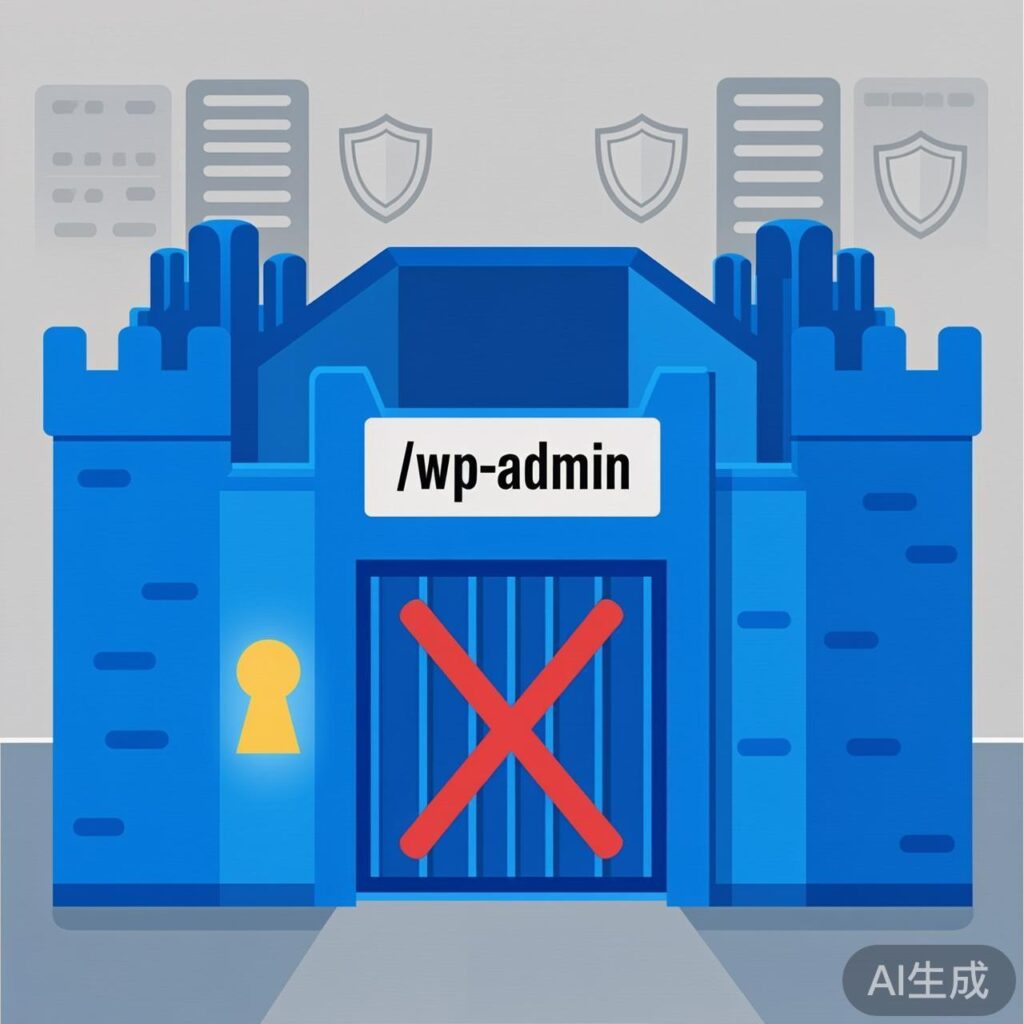
How to Change the Default WordPress Admin Login URL
The default WordPress admin login URLs (/wp-login.php and /wp-admin) are publicly known, making them prime targets for brute force attacks. Changing the login address can significantly improve your site's security. Below are the main methods.
Method 1: Modify Core Files (Not Recommended)
This method involves directly renaming the login entry point in WordPress core files. Warning: Modifying core files is risky. Changes will be overwritten during WordPress updates, and errors can break your site. This is for educational purposes only; do not use in production.
- Rename the Login File: In your site's root directory, rename
wp-login.phpto something hard to guess, e.g.,my-secret-login.php. - Update Internal References: Open the renamed file in a code editor. Use find-and-replace to change all instances of
wp-loginto your new prefix (e.g.,my-secret-login). - Update Referencing Files: Locate
wp-includes/general-template.php. Similarly, replace allwp-loginstrings with your new prefix. - (Optional) Modify Login URL Variable: In
general-template.php, search for the variable$login_url. You can change it to something like$login_url = site_url('index.php', 'login');. This redirects direct/wp-adminaccess, allowing entry only via your new file (e.g.,/my-secret-login.php).
Important: This method breaks after WordPress updates and is error-prone. Use only to understand the concept.
Method 2: Use a Plugin (Recommended)
This is the safest and easiest approach. Many security plugins offer this feature.
- WPS Hide Login: A lightweight plugin focused solely on changing the login URL.
- All In One WP Security & Firewall: A comprehensive security suite including login URL change, firewall, and brute force protection.
- iThemes Security: Another popular security plugin with similar features.
After installing and activating a plugin, look for a setting like "Rename Login Page" to set your custom URL alias—no coding required.
Method 3: Add Code to Your Theme's Functions File (Use with Caution)
You can add custom code to your child theme's functions.php file. This is safer than editing core files, but errors can still cause issues. The example below adds a secret key parameter to protect the login page:
// Add a protection key to the admin login URL
add_filter( 'login_url', 'custom_login_url', 10, 3 );
function custom_login_url( $login_url, $redirect, $force_reauth ) {
    // Set your secret parameter and value
    $secret_key = 'my_secret_key';
    $secret_value = 'my_password123';
    // Append the parameter to the standard login URL
    $login_url = add_query_arg( $secret_key, $secret_value, $login_url );
    return $login_url;
}

// Verify the key; redirect invalid access to the homepage
add_action( 'login_init', 'verify_login_secret' );
function verify_login_secret() {
    // Use the same key and value as above
    $secret_key = 'my_secret_key';
    $secret_value = 'my_password123';
    // Redirect if the request lacks the correct key-value pair
    if ( ! isset( $_GET[$secret_key] ) || $_GET[$secret_key] !== $secret_value ) {
        wp_redirect( home_url() ); // Redirect to site homepage
        exit;
    }
}
Explanation:
- The first function modifies all generated login links (e.g., in "Lost Password" emails) to automatically include the secret key parameter.
- The second function validates this key when the login page loads. Only URLs with the correct key (e.g.,
https://yoursite.com/wp-login.php?my_secret_key=my_password123) can access the login form; others are redirected to the homepage. - Important: Replace
my_secret_keyandmy_password123with your own complex strings. After adding this code, you must use the new full URL to log in.
Summary and Best Practices
- Use a Plugin First: For most users, a plugin like WPS Hide Login is the best, safest choice.
- Code Solution: If you are comfortable with code, Method 3 (adding to a child theme's
functions.php) is a better custom solution than editing core files. - Layered Security: Changing the login URL is just one layer. Also:
- Use strong passwords and enable two-factor authentication (2FA).
- Limit login attempts.
- Keep WordPress, themes, and plugins updated.
- Use a reliable Web Application Firewall (WAF).
- Backup: Always back up your site files and database before making any changes, especially code modifications.
Using these methods, you can effectively hide WordPress's default login entry point, significantly reducing the risk of automated brute force attacks.