Overview
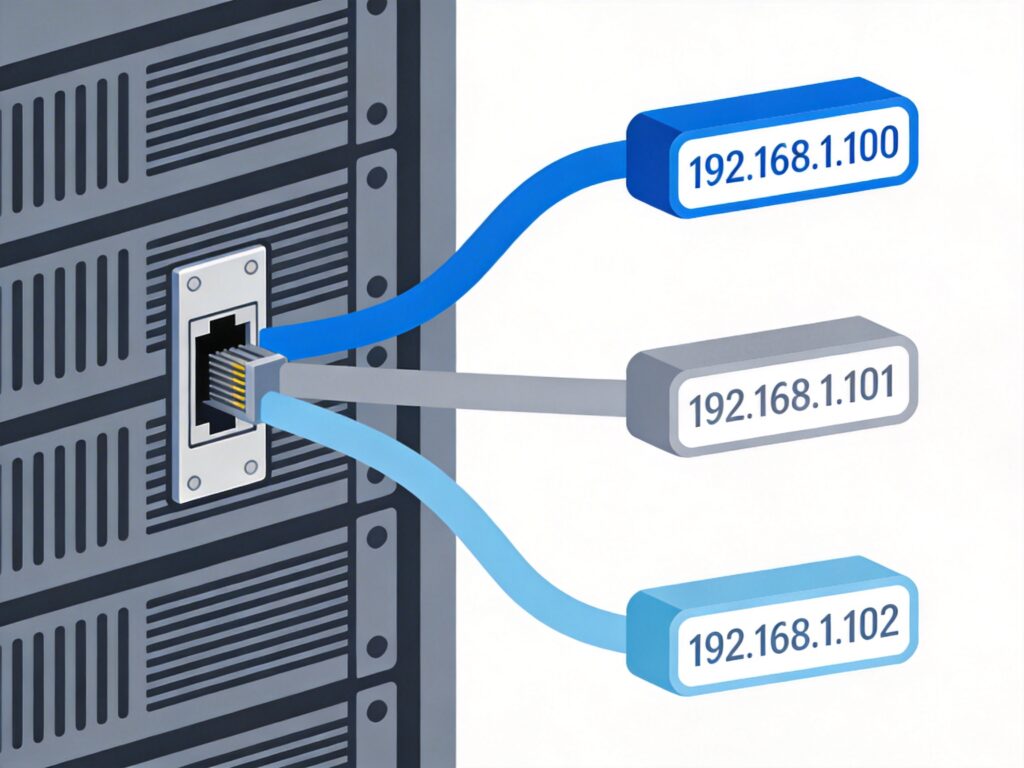
In CentOS, you can configure multiple IP addresses for a single physical network interface card (NIC), such as eth0, by creating network interface aliases. This is useful for running multiple services or implementing network isolation. This guide walks you through the configuration process.
Prerequisites
- Root access to the CentOS server.
- An active SSH connection to the server.
- The additional IP address(es), subnet mask, and gateway information you intend to bind.
Configuration Steps
Step 1: Locate Network Configuration Files
First, navigate to the network configuration directory:
cd /etc/sysconfig/network-scriptsExamine the primary interface configuration file (e.g., for eth0):
cat ifcfg-eth0A typical ifcfg-eth0 file looks like this:
DEVICE=eth0
BOOTPROTO=static
ONBOOT=yes
IPADDR=192.168.1.100
NETMASK=255.255.255.0
GATEWAY=192.168.1.1
DNS1=8.8.8.8
DNS2=8.8.4.4
Step 2: Configure the First Additional IP (Alias eth0:0)
Copy the primary configuration file to create the first alias:
cp ifcfg-eth0 ifcfg-eth0:0Edit the new file:
vi ifcfg-eth0:0Modify the following key parameters:
- DEVICE: Must be set to the alias name,
eth0:0. - IPADDR, NETMASK: Update with the first additional IP's information.
- Set BOOTPROTO to
staticand ONBOOT toyes.
Example ifcfg-eth0:0:
DEVICE=eth0:0
BOOTPROTO=static
ONBOOT=yes
IPADDR=192.168.1.101
NETMASK=255.255.255.0Note: Typically, only the primary interface (eth0) should have a GATEWAY defined. Adding a GATEWAY to alias interfaces (eth0:0, eth0:1, etc.) can cause routing conflicts. Omit the GATEWAY line unless specifically required by your network design.
Step 3: Configure the Second Additional IP (Alias eth0:1)
Repeat the process for the second alias. Create the configuration file:
cp ifcfg-eth0 ifcfg-eth0:1Edit the file:
vi ifcfg-eth0:1Change the DEVICE to eth0:1 and set the second IP address:
DEVICE=eth0:1
BOOTPROTO=static
ONBOOT=yes
IPADDR=192.168.1.102
NETMASK=255.255.255.0
# GATEWAY is usually omitted for alias interfaces
# GATEWAY=192.168.1.1
Step 4: Restart Network Service and Verify
After editing all configuration files, restart the network service:
systemctl restart networkNote: For CentOS 7 and above, use systemctl. For CentOS 6, use service network restart.
Verify the configuration with:
ip addr show eth0Or the traditional command:
ifconfigYou should see eth0, eth0:0, eth0:1, etc., with their assigned IP addresses.
Troubleshooting and Notes
- SSH Connection Timeout: If SSH disconnects after restarting the network, it may be due to an incorrect gateway or service failure. Use the server's VNC or local console to log in and fix the configuration.
- Configuration Syntax: Ensure no syntax errors (e.g., extra spaces, typos) exist in the configuration files.
- Persistence Use
ONBOOT=yesto ensure the configuration survives a reboot. - Modern Method: On newer CentOS/RHEL 8+ systems, consider using
nmcliornmtuitools for network management, as they integrate better with NetworkManager.
Extension: Temporarily Adding an IP with the ip Command
To add an IP address temporarily for testing (changes are lost on reboot), use the ip command:
ip addr add 192.168.1.101/24 dev eth0 label eth0:0To remove the temporary IP:
ip addr del 192.168.1.101/24 dev eth0