Common WordPress Database Migration Errors and Solutions
During WordPress site migration or database import, failures often occur due to inconsistencies between the source and target MySQL versions, character sets, or collations. This article provides clear troubleshooting and resolution steps for typical SQL syntax errors and unknown collation errors.
Common Error Types and Causes
Migration errors generally fall into two categories:
- SQL Syntax Errors: For example,
ERROR 1064 (42000). This usually happens because the exported SQL file contains syntax from an older MySQL version (likeTYPE=MyISAM) that is no longer supported by the newer MySQL version on the target server. - Unknown Collation Errors: For example,
ERROR 1273 (HY000): Unknown collation: 'utf8mb4_unicode_ci'. This occurs when the source database uses a newer character set (like utf8mb4) whose collation is not supported by the target MySQL version (e.g., 5.5 or earlier).
Error 1: SQL Syntax Error (TYPE=MyISAM)
Example error:
ERROR 1064 (42000) at line 28: You have an error in your SQL syntax; check the manual that corresponds to your MySQL server version for the right syntax to use near 'TYPE=MyISAM AUTO_INCREMENT=1' at line 9Cause: In MySQL 5.5 and later, the TYPE=MyISAM syntax is deprecated and should be replaced with ENGINE=MyISAM.
Solution:
- Open the exported
.sqlfile in a text editor (e.g., Notepad++, VS Code). - Find and replace all instances of
TYPE=MyISAMwithENGINE=MyISAM. - Save the file and attempt the import again.
Error 2: Unknown Collation (utf8mb4_unicode_ci)
Example error:
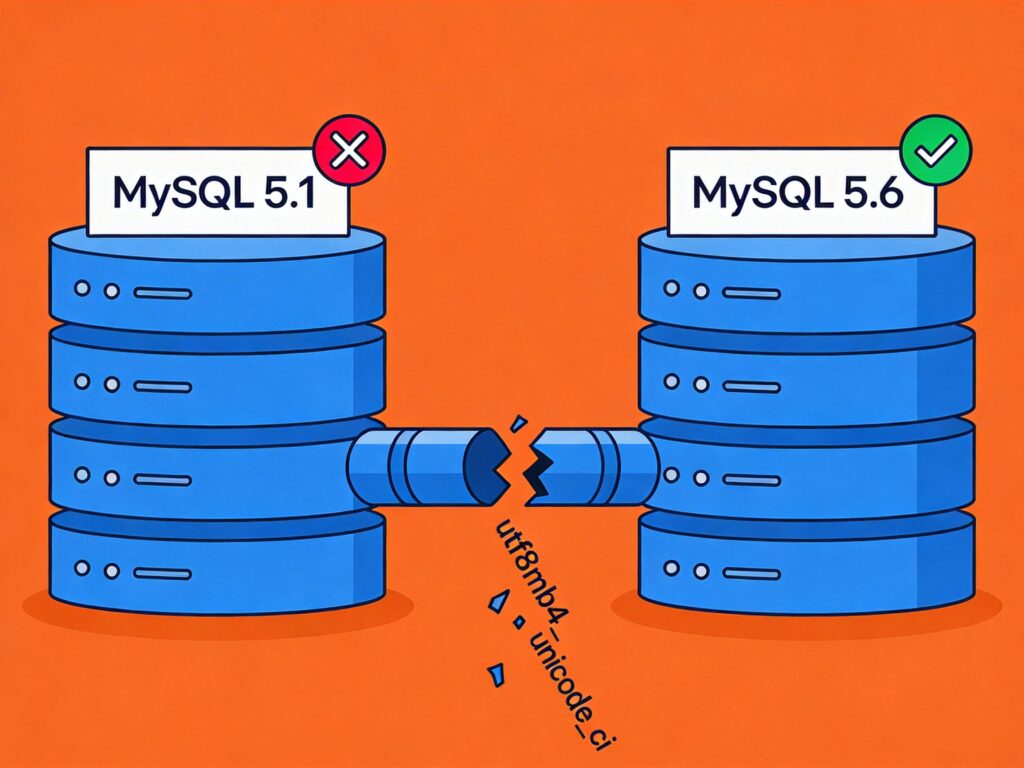
ERROR 1273 (HY000) at line 29: Unknown collation: 'utf8mb4_unicode_ci'Cause: The utf8mb4 character set and its corresponding collations were introduced in MySQL 5.5.3. If the target MySQL version is older (e.g., 5.1), it will not recognize them.
Solution: Use a text editor to perform a batch find-and-replace on the character set and collation definitions in the SQL file. Follow this order to avoid incomplete replacements or new errors:
- Replace all instances of
utf8mb4_unicode_ciwithutf8_general_ci. - Replace all instances of
utf8mb4withutf8. - (Optional) If the file contains
CHARSET=utf8mb4, also replace it withCHARSET=utf8.
Important Notes:
- Always use an editor that supports UTF-8 encoding to avoid file corruption.
- Back up the original SQL file before making changes.
- After replacement, re-import using the command:
mysql -u username -p database_name < file.sql.
Prevention and Best Practices
To avoid compatibility issues during migration, consider these measures:
- Standardize Environments: Try to keep the major MySQL version consistent across development, testing, and production environments.
- Use Modern Versions: For new WordPress deployments, use MySQL 5.6 or later to natively support the utf8mb4 character set (which can store 4-byte emojis).
- Use Professional Migration Plugins: For WordPress sites, use dedicated plugins like
All-in-One WP MigrationorDuplicator, which often handle underlying database compatibility issues. - Specify Compatibility Options on Export: When using the
mysqldumpcommand, you can add parameters like--compatible=mysql40to generate a more compatible SQL file (though some newer features may be lost).
Following these methods should resolve most WordPress database import errors caused by version differences. If problems persist, check database user permissions and ensure the target database was created successfully.