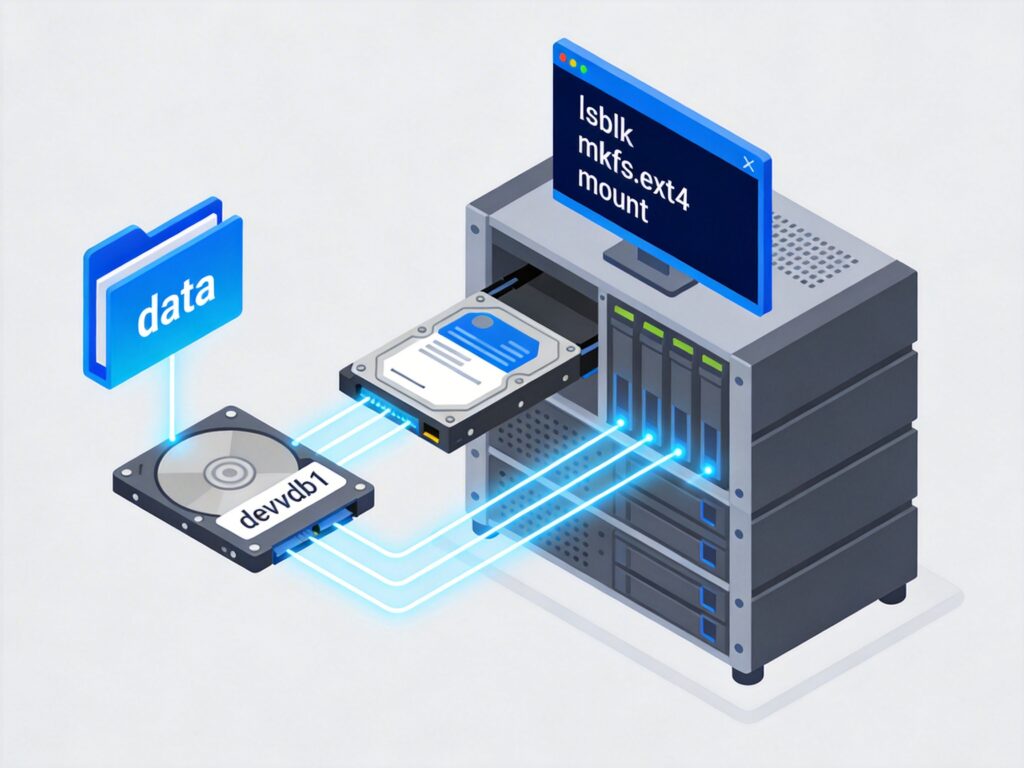
Complete Guide to Mounting a Data Disk on CentOS/Linux Server
After logging into your CentOS server via SSH, follow these steps to mount a data disk.
Important Warning: Mounting operations (especially formatting) will erase all data on the target disk. Ensure the target disk (e.g., /dev/vdb) contains no important data or is not in use.
Step 1: Identify the Disk Device
First, identify the device name of the newly added data disk.
lsblk
# or
fdisk -l
Tip: The system disk is often /dev/vda or /dev/sda. A new data disk might be /dev/vdb, /dev/sdb, etc. Identify it carefully by size; do not mistake it for the system disk. Use df -h to see mounted system disks for exclusion.
Step 2: Partition the Disk
Assuming the data disk is /dev/vdb, use fdisk to create a partition.
fdisk /dev/vdbIn the interactive interface, enter these commands sequentially (# denotes comments, do not type):
n    # new partition
p    # primary partition
1    # partition number (default 1)
     # first sector (press Enter for default)
     # last sector (press Enter to use entire disk)
w    # write and exit
After this, you'll have a new partition: /dev/vdb1.
Step 3: Format the Partition
Format the new partition with the ext4 filesystem (common for Linux).
mkfs.ext4 /dev/vdb1Formatting may take a few seconds.
Step 4: Mount the Partition
Mount the formatted partition to a system directory.
# 1. Create a mount point, e.g., /data
mkdir /data

# 2. Mount the partition
mount /dev/vdb1 /data

# 3. Verify the mount
mount | grep /data
If the output shows /dev/vdb1 mounted at /data, the mount succeeded.
Step 5: Configure Automatic Mount at Boot
Manual mounts are lost after reboot. Add an entry to /etc/fstab for automatic mounting.
# Append the configuration to fstab
echo '/dev/vdb1   /data   ext4    defaults  0 0' >> /etc/fstab
Configuration breakdown:
/dev/vdb1: Device/partition to mount./data: Mount point directory.ext4: Filesystem type.defaults: Mount options (rw, suid, dev, exec, auto, nouser, async).0: First 0: no dump backup.0: Second 0: no filesystem check at boot (root is usually 1).
Finally, verify the configuration and test it:
# Check fstab content
cat /etc/fstab

# Test fstab syntax (does not actually mount)
mount -a

# Verify the mount is present
df -h | grep /data
If mount -a produces no errors and df -h shows /data, the configuration is successful. The data disk will mount automatically at /data on the next reboot.