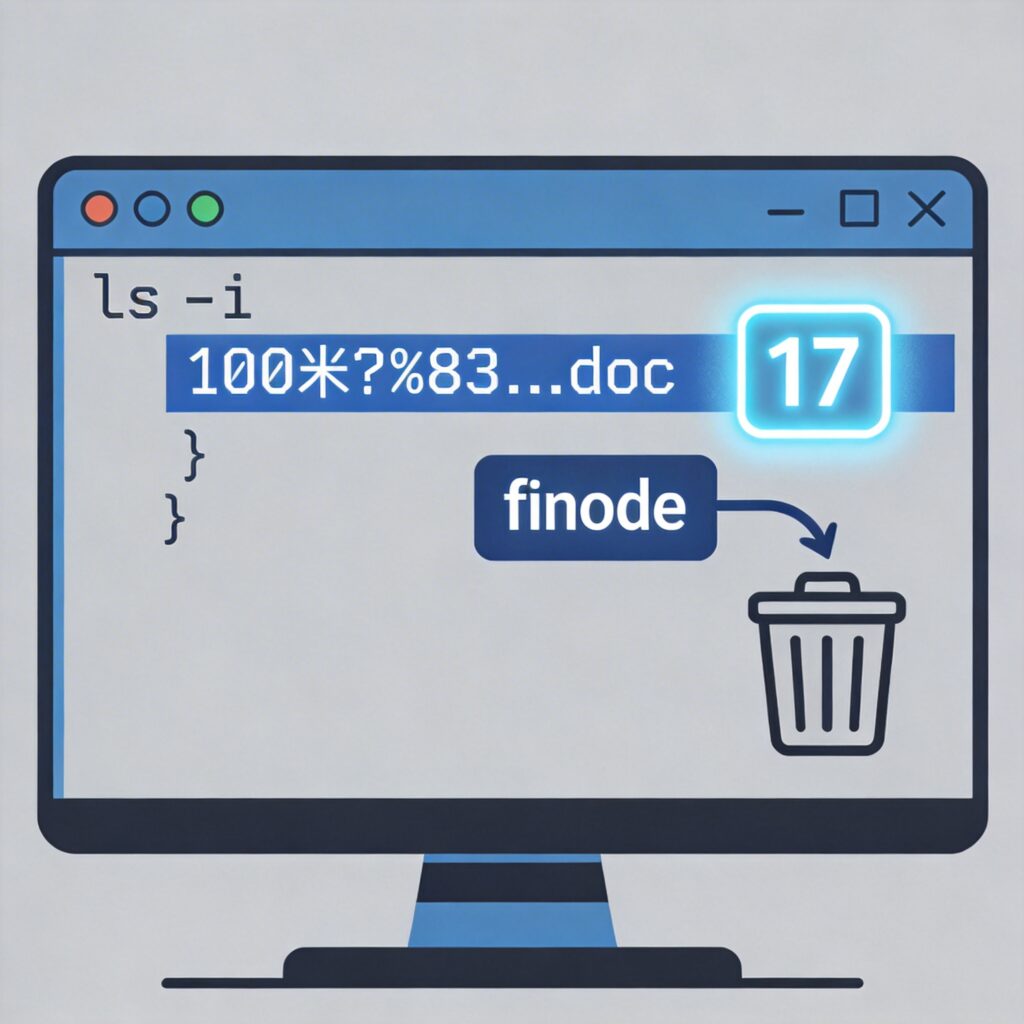
Problem Description
In Linux systems, you may encounter files with corrupted or special characters in their names (such as invisible or control characters). In such cases, the standard rm command may fail because the shell cannot properly parse these filenames.
Solution: Delete Files via Inode Number
Every filesystem object (file, directory, etc.) has a unique inode number. We can bypass problematic filenames and operate directly on files using their inode numbers.
Step 1: Find the File's Inode Number
Use the ls command with the -i option to display inode numbers.
ls -iFor a detailed view including hidden files, use:
ls -liaExample output:
17 -rw-r--r-- 1 root root 307K Aug 29 19:16 100米?%83%9F?%9B???%92身??%93项?%96?工?%96???%88.docThe first column shows the inode number. In this example, the corrupted file has inode 17.
Step 2: Delete the File Using Its Inode Number
Once you have the inode number, use the find command to locate and delete the file.
Method 1: Using the -exec Parameter
find . -inum 17 -exec rm -f {} ;For directories, add the -r flag:
find . -inum 17 -exec rm -rf {} ;Command breakdown:
find .: Search in the current directory and subdirectories.-inum 17: Match files with inode number 17.-exec rm -rf {} ;: Executerm -rfon each found file.{}is replaced by the file path, and;terminates the command.
Method 2: Using the -delete Parameter (Simpler)
find . -inum 17 -deleteThis command deletes matching files directly without calling an external rm command. It also works for directories.
Alternative Methods for Handling Corrupted Filenames
1. Using Wildcards
If the problematic file is the only one matching a pattern, try using wildcards.
rm -f *.doc # Deletes all .doc files—use with caution2. Using Shell Wildcards and Escaping
Prefixing the filename with ./ can sometimes prevent shell interpretation issues.
rm -f ./"strange-filename"For corrupted names, try:
rm -f ./corrupted-part*3. Using a Graphical File Manager
If your system has a GUI (e.g., GNOME Files, KDE Dolphin), you can locate and delete the file directly. File managers often handle special characters better.
Important Notes
- Verify the inode number: Always confirm the inode via
ls -ito avoid accidental data loss. - Permissions: You need write permission on the parent directory to delete a file.
- Directory deletion: To delete a directory with a corrupted name, use
find . -inum <inode> -exec rm -rf {} ;or-delete. - Prevention: Avoid creating filenames with special or non-ASCII characters to maintain compatibility.
Deleting via inode number is the most reliable method, as it completely bypasses problematic filename parsing.