Problem Description
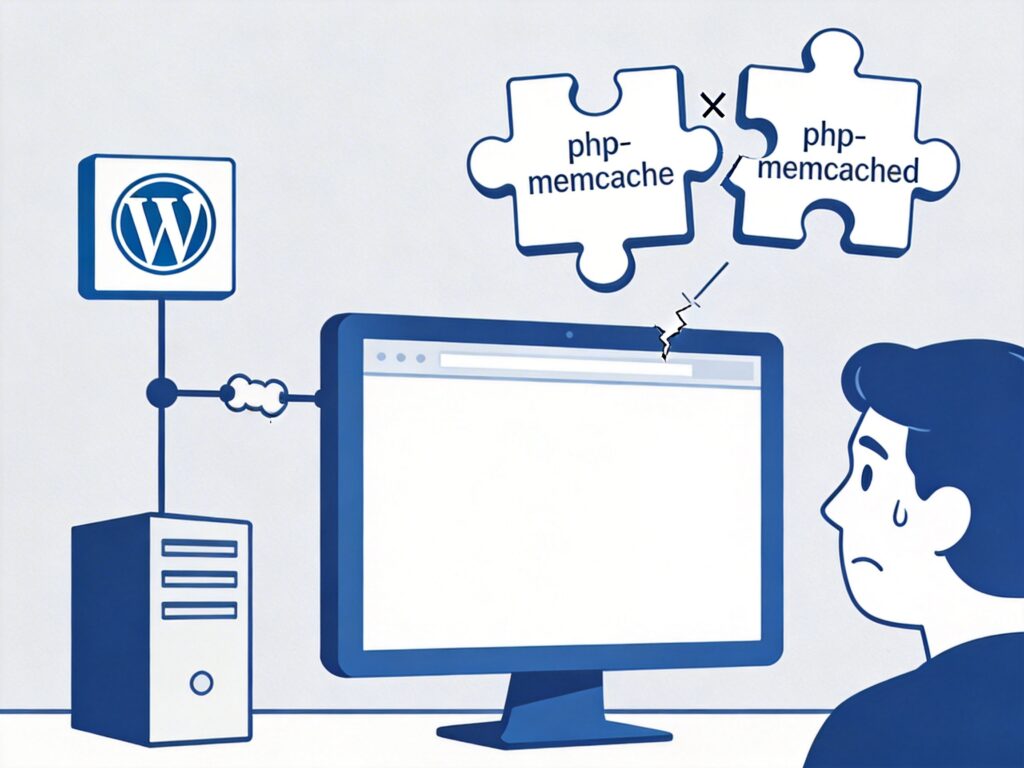
After deploying WordPress using the LNMP one-click installation script, you installed the php-memcached extension and uploaded the object-cache.php file to the wp-content directory. Upon refreshing the site's homepage, the page appears completely blank (white screen), making the website inaccessible.
Root Cause Analysis
This issue is typically caused by incompatibility between the PHP extension and the WordPress object cache plugin. The key distinction is:
- php-memcache: An older but stable PHP extension that uses the
Memcacheclass. - php-memcached: A newer, more feature-rich PHP extension that uses the
Memcachedclass (note the 'd' at the end).
Most widely distributed object-cache.php backend files for WordPress are designed for the php-memcache extension. If your server has the php-memcached extension installed, but the plugin tries to call the Memcache class, a fatal error occurs because the class doesn't exist, resulting in a blank page.
Solutions
Install the corresponding PHP extension based on the requirements of your object-cache.php file.
Solution 1: Install the php-memcache Extension (Recommended)
If your object-cache.php file is a common version, the most straightforward fix is to uninstall php-memcached and install the php-memcache extension.
- Uninstall the php-memcached extension (LNMP environment example):
# Navigate to the LNMP installation directory cd /path/to/lnmp # Run the uninstall script, select your PHP version and the memcached extension ./addons.sh uninstall - Install the php-memcache extension:
# In the same LNMP directory, run the install script ./addons.sh install # From the list, select 'memcache' (not memcached) to install - Restart the PHP service:
# Restart PHP-FPM, e.g., for PHP 7.4 lnmp php-fpm restart # Or use the system service command systemctl restart php-fpm - Refresh your WordPress page; the blank screen issue should be resolved.
Solution 2: Use an object-cache.php File Adapted for php-memcached
If you prefer to use the newer php-memcached extension, you need to find or modify a object-cache.php file specifically written for it. Search for "WordPress object-cache.php memcached" on platforms like GitHub. After replacing the file, restart your PHP service.
How to Verify the Extension is Correctly Installed
Create a phpinfo.php file, access it, and search for "memcache" to see the loaded extension.
<?php
phpinfo();
?>
If you see a "memcache" module, Solution 1 was successful. If you see a "memcached" module, you have the other extension installed.
Summary
A blank WordPress page is often caused by an uncaught PHP fatal error. When configuring Memcached object caching, ensure your object-cache.php file exactly matches the type of PHP Memcache extension (php-memcache or php-memcached) installed on your server. For most users, installing the php-memcache extension and using a common cache file is the simplest and most reliable approach.