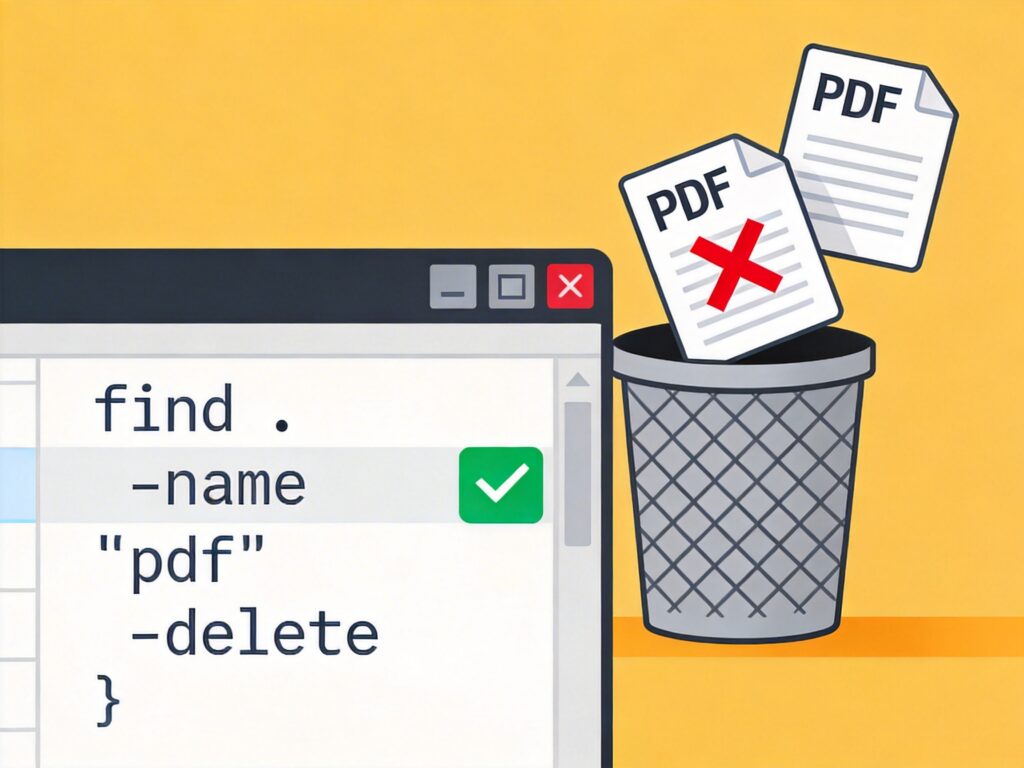
Using the find Command to Safely Delete Files by Pattern in Linux
In Linux, you often need to delete multiple files matching a specific pattern. Using the find command with the -delete action is a safer and more standard approach, as it handles filenames containing spaces or special characters correctly. Below are examples for common scenarios.
1. Delete All .pdf Files in the Current Directory
find . -maxdepth 1 -name "*.pdf" -deleteCommand breakdown:
.: The current directory.-maxdepth 1: Search only the current directory, not subdirectories.-name "*.pdf": Match all files ending with.pdf.-delete: Delete matched files.
2. Delete .pdf Files Starting with "da" in the Current Directory
find . -maxdepth 1 -name "da*.pdf" -delete3. Delete .pdf Files Containing "bb" in the Current Directory
find . -maxdepth 1 -name "*bb*.pdf" -delete4. Combined Condition: Delete .pdf Files Starting with "da" and Containing "bb"
find . -maxdepth 1 -name "da*bb*.pdf" -deleteImportant Safety Notes and Analysis of Alternative Commands
The original post mentioned using patterns like ls | xargs rm -fr, which carries risks:
- Risk: If filenames contain spaces, newlines, or other special characters,
xargsmay split them incorrectly, leading to accidental deletion. - Improvement: Using
find -deleteorfind -exec rm {}is more reliable, as they handle complex filenames properly.
If you prefer a pipeline approach, ensure filenames have no special characters, or use a safer command:
find . -maxdepth 1 -name "*.pdf" -print0 | xargs -0 rm -fHere, -print0 and xargs -0 use null characters as delimiters, safely handling all filenames.
Summary
For file deletion, especially batch operations, prefer find . -name "pattern" -delete. It is clear, direct, and the most robust method. Before deleting, run the command without -delete to preview the file list and confirm it's correct.