Introduction and Advantages of SSHFS
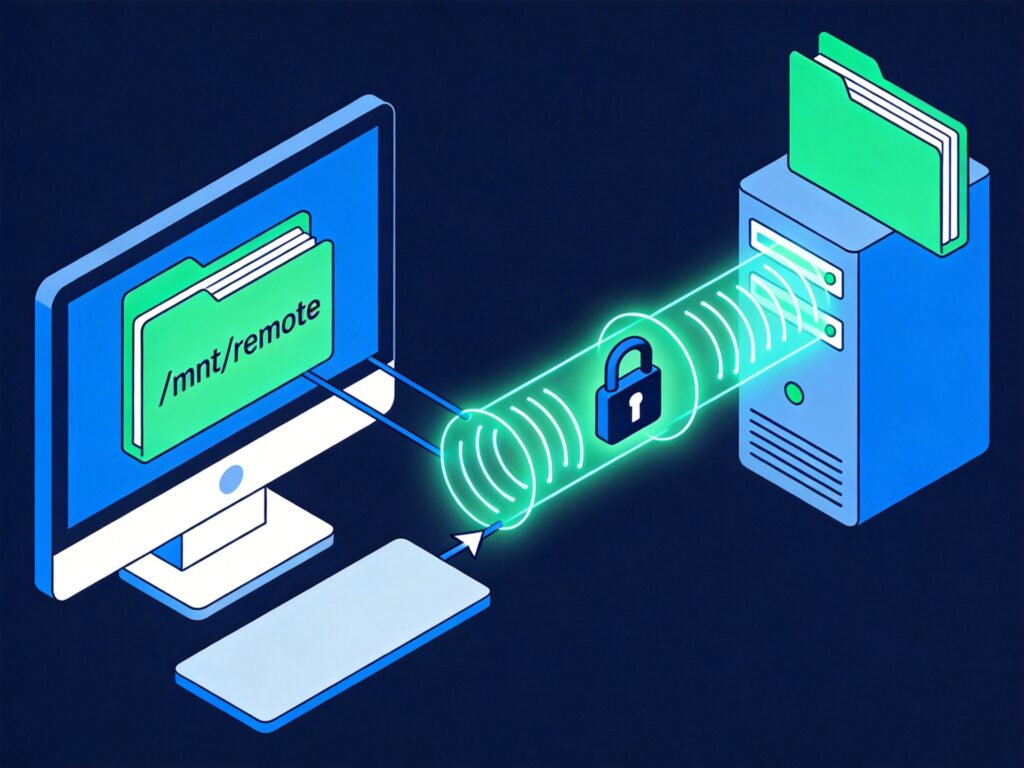
SSHFS (SSH Filesystem) is a user-space filesystem based on the SSH protocol. It allows you to mount a remote directory locally, enabling you to work with remote files as if they were local. Since it uses the encrypted SSH protocol for data transfer, it provides a high level of security.
Key advantages include:
- Convenience: No need to manually download, edit, and upload files. You can read and write directly at the local mount point, and changes are automatically synchronized to the remote host.
- High Security: Leverages the security mechanisms of the SSH protocol, ensuring encrypted data transmission.
- Wide Applicability: Useful for extending local storage (e.g., website attachment directories), cross-server file sharing, and synchronizing development environments.
Installation and Prerequisites
Before you begin, ensure the following conditions are met:
- Both the local and remote hosts have an SSH service (like OpenSSH) installed.
- The local system has the FUSE (Filesystem in Userspace) kernel module loaded. Check with:
lsmod | grep fuseIf there is no output, install the fuse module (e.g., on Ubuntu: sudo apt install fuse).
Install SSHFS:
- Debian/Ubuntu:
sudo apt install sshfs - RHEL/CentOS:
sudo yum install fuse-sshfsorsudo dnf install fuse-sshfs - If not available in your repository, you can compile from source on GitHub.
Manual Mounting and Unmounting
Mounting a Remote Directory
First, create a local mount point:
sudo mkdir /mnt/remoteThen use sshfs to mount the remote directory (example uses remote user 'user', IP '111.111.111.111', and remote directory '/home'):
sshfs -o allow_other [email protected]:/home /mnt/remoteThe -o allow_other option allows other users to access the mount point. You will be prompted for the SSH password. After success, you can access remote files in /mnt/remote.
Unmounting the Directory
Use the following command to unmount:
fusermount -u /mnt/remoteIf you get a permission error, try using sudo.
Configuring Automatic Mount at Boot
To enable automatic mounting at boot, complete two steps: configure SSH key-based authentication (passwordless login) and add a mount entry to /etc/fstab.
1. Set Up SSH Key Authentication
Generate an SSH key pair on the local machine:
ssh-keygen -t rsaPress Enter to accept defaults (you can set a passphrase for added security). After generation, upload the public key to the remote host.
Recommended method: Use the ssh-copy-id command:
ssh-copy-id -i ~/.ssh/id_rsa.pub [email protected]Afterwards, test SSH login to verify it no longer requires a password.
2. Add Auto-mount Entry to /etc/fstab
Edit the /etc/fstab file and add the following line at the end:
sshfs#[email protected]:/home /mnt/remote fuse defaults,_netdev,allow_other,reconnect,ServerAliveInterval=15,ServerAliveCountMax=3 0 0Parameter explanation:
_netdev: Declares this as a network device, ensuring the network is ready before mounting.reconnect: Enables automatic reconnection.ServerAliveIntervalandServerAliveCountMax: Keep the SSH connection alive to prevent timeouts.
After adding, test the configuration with sudo mount -a. The mount will be automatic after a reboot.
Alternative: Using a systemd Mount Unit
For systems using systemd, you can create a mount unit for more flexible management. For example, create /etc/systemd/system/mnt-remote.mount:
[Unit]
Description=SSHFS Mount for Remote Home
After=network-online.target
Wants=network-online.target

[Mount]
[email protected]:/home
Where=/mnt/remote
Type=fuse.sshfs
Options=_netdev,allow_other,reconnect,ServerAliveInterval=15,ServerAliveCountMax=3,IdentityFile=/home/localuser/.ssh/id_rsa

[Install]
WantedBy=multi-user.target
Then enable and start the unit:
sudo systemctl daemon-reload
sudo systemctl enable --now mnt-remote.mount
Useful Tips and Troubleshooting
Using SSH Config Aliases
Set an alias for the remote host in ~/.ssh/config:
Host remotehost
    HostName 111.111.111.111
    User user
    IdentityFile ~/.ssh/id_rsa
You can then simplify the mount command:
sshfs remotehost:/home /mnt/remoteThe alias can also be used in /etc/fstab: sshfs#remotehost:/home ....
Common Issues
- Mount Point Permissions: Ensure the mount point directory exists and the user has access. To allow all users, add
-o allow_other, but first ensureuser_allow_otheris uncommented in/etc/fuse.conf. - Boot Mount Failure: Check if the network is ready (the
_netdevparameter), if SSH key authentication is correctly configured, and if the remote host's SSH service allows public key authentication. - Connection Timeout: Add
ServerAliveIntervalandServerAliveCountMaxto the mount options to maintain the connection.
Conclusion
SSHFS provides a secure and efficient solution for cross-server file management. By configuring SSH key authentication and using /etc/fstab or a systemd unit, you can achieve reliable automatic mounting at boot. It is well-suited for scenarios like storage expansion, backup synchronization, and remote development. Thorough testing in production environments is recommended, considering the impact of network stability.