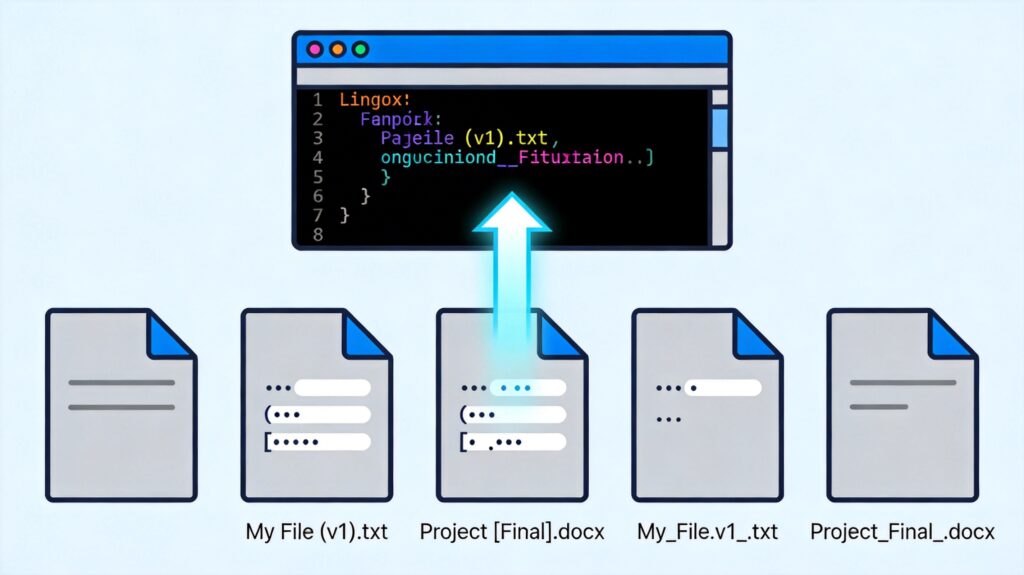
Linux Shell Script: Safely Batch Replace Spaces and Special Characters in Filenames
In Linux, filenames containing spaces, parentheses, commas, or other special characters can cause issues in command-line operations and script processing. This script standardizes filenames in the current directory by performing the following actions:
- Replace all spaces (including multiple consecutive spaces) with a single dot
.. - Replace parentheses
(,), square brackets[,], and commas,with underscores_. - Collapse multiple consecutive dots or underscores into a single character.
This results in cleaner, safer filenames that are less likely to cause parsing errors.
Script Code
Save the following as a file (e.g., rename_files.sh) and make it executable.
#!/bin/bash

find . -maxdepth 1 -name '*' -print | while read -r name; do
    if [ "$name" = "." ]; then
        continue
    fi

    newname=$(echo "$name" |
        sed 's/s+/./g' |
        sed 's/[(,)]/_/g' |
        sed 's/[/_/g' |
        sed 's/]/_/g' |
        sed 's/.{2,}/./g' |
        sed 's/_{2,}/_/g')

    if [ "$name" != "$newname" ]; then
        echo "mv "$name" "$newname""
        mv "$name" "$newname"
    fi
done

echo "Renaming complete."
Key Improvements
- Uses
bashfor better compatibility. - Uses
read -rto prevent backslash interpretation. - Skips the current directory entry (
.). - Corrected variable names and quoted
mvarguments for safety with spaces. - Added a completion message.
Usage Instructions
- Open a terminal and navigate to the target directory.
- Save the script as
rename_files.sh. - Make it executable:
chmod +x rename_files.sh - Dry run first: Comment out the
mvline (add#at the start) and run the script to preview changes. - If the output is correct, uncomment the
mvline and run the script again to perform the rename.
Warning: Batch renaming is irreversible. Always back up important files or test the script in a safe directory first.