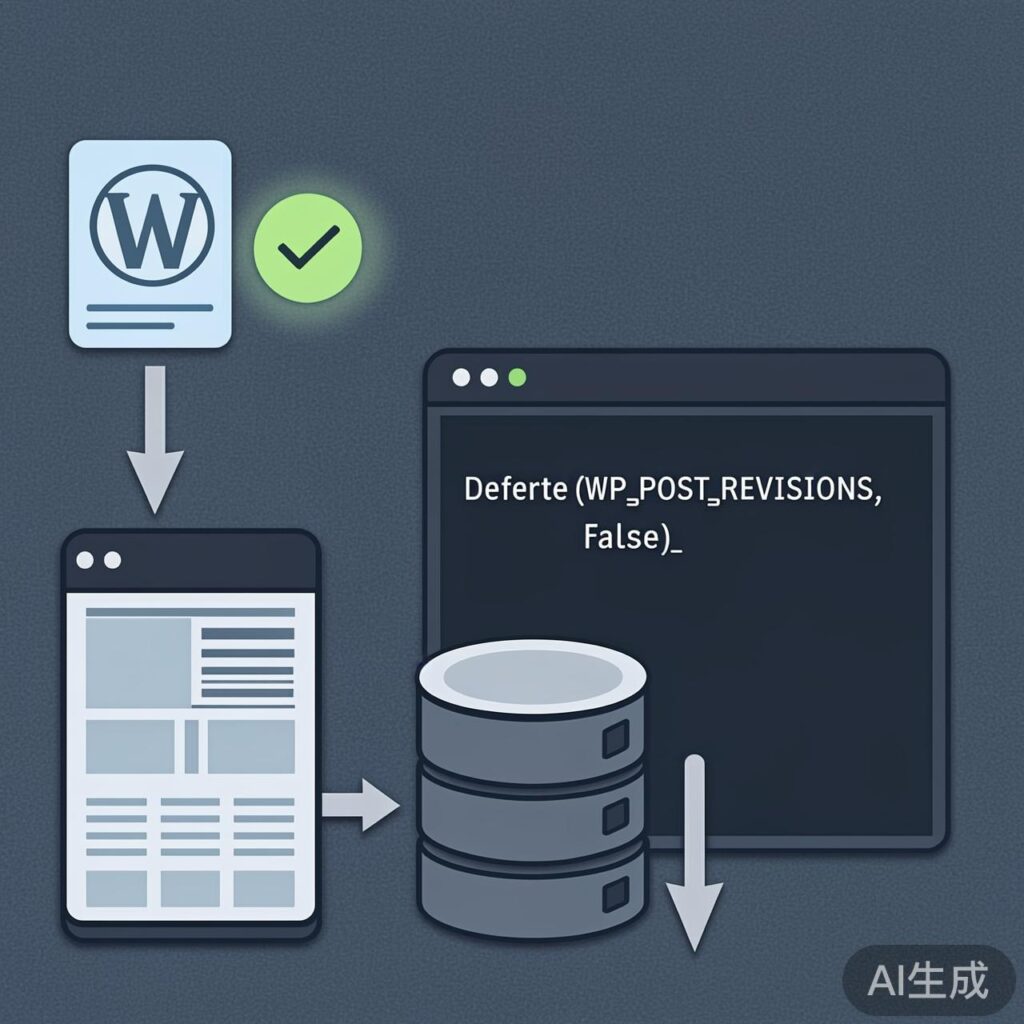
Introduction to WordPress Revisions and Autosave
WordPress includes Revisions and Autosave features to prevent content loss and allow version history. However, for some sites (like those with stable content or infrequent updates) or users with limited server resources, these features can generate redundant data and increase database load.
Method 1: Using Plugins (Recommended for Most Users)
For users unfamiliar with code or who prefer simplified management, using a dedicated plugin is the easiest approach.
Plugin Advantages
- Easy Operation: Upload, install, and activate. No code modification required.
- Easy Maintenance: Plugin functionality typically remains unaffected after WordPress core updates.
- Flexible Control: Many plugins offer granular settings, such as disabling features for specific post types.
Recommended Plugin Alternatives
Note: The plugin mentioned in the original post (WP-Disable-Revisions-and-Autosave) was released in 2014 and may not be compatible with recent WordPress versions. Consider these actively maintained alternatives:
- Disable Post Revision: Lightweight plugin focused on disabling revisions.
- Revision Control: Allows you to control the maximum number of revisions globally or per post type.
- WP Optimize: Comprehensive database optimization plugin, includes cleaning revisions and drafts.
Search for and install these plugins from the WordPress admin plugin directory for better compatibility and support.
Method 2: Modifying Code (For Developers or Advanced Users)
If you prefer code control or want to avoid extra plugins, you can modify the WordPress configuration file or theme functions file.
1. Completely Disable Revisions
In your site's wp-config.php file (located in the WordPress root directory), add the following code before the line that says /* That's all, stop editing! Happy publishing. */:
// Completely disable post revisions
define('WP_POST_REVISIONS', false);
2. Limit the Number of Revisions
If you want to keep a limited number of revisions instead of disabling them completely, set a maximum count:
// Keep a maximum of 5 revisions per post
define('WP_POST_REVISIONS', 5);
3. Adjust the Autosave Interval
The autosave feature prevents content loss during editing. The default interval is 60 seconds. You can modify it (in seconds) with this code:
// Set autosave interval to 120 seconds (2 minutes)
define('AUTOSAVE_INTERVAL', 120);Important: Always back up your wp-config.php file before making changes. This method usually remains effective after WordPress core updates as the configuration file is independent.
4. Disable via Theme Functions File (Optional)
In addition to modifying wp-config.php, you can add this code to the end of your current theme's functions.php file:
// Remove support for revisions (for all post types)
add_action('init', function() {
    remove_post_type_support('post', 'revisions');
    remove_post_type_support('page', 'revisions');
    // Add lines for other custom post types if needed
});
Summary and Recommendations
- For most users: Use a well-maintained plugin (like Revision Control). It's simple and low-risk.
- For developers or performance-focused users: Modify the
wp-config.phpfile to disable or limit revisions. It's efficient and persistent. - Autosave feature: Not recommended to disable completely. Consider increasing the interval to balance data safety and server load.
Regardless of the method chosen, performing a full backup of your site before implementation is a crucial safety step.