Why Choose YARPP Plugin?
WordPress default widgets typically only display "Latest Posts," which limits content relevance and user engagement. To intelligently display related content at the end of posts or in sidebars, we recommend using Yet Another Related Posts Plugin (YARPP).
Key reasons to choose YARPP:
- Easy to Use: Installation and configuration are intuitive, requiring no complex coding.
- High Relevance: Calculates relatedness based on multiple dimensions like post title, content, tags, and categories for accurate matching.
- Highly Customizable: Offers extensive display options and style controls.
YARPP Plugin Installation Steps
Follow these steps to install YARPP:
- Visit the WordPress plugin directory or your WordPress admin dashboard and search for "YARPP."
- Click "Install Now" and activate the plugin.
- After activation, find YARPP or go to Settings → YARPP in the WordPress admin sidebar to access the configuration page.
Recommended Configuration & Optimization
The following settings optimize the display and quantity of related posts.
1. Relatedness Options
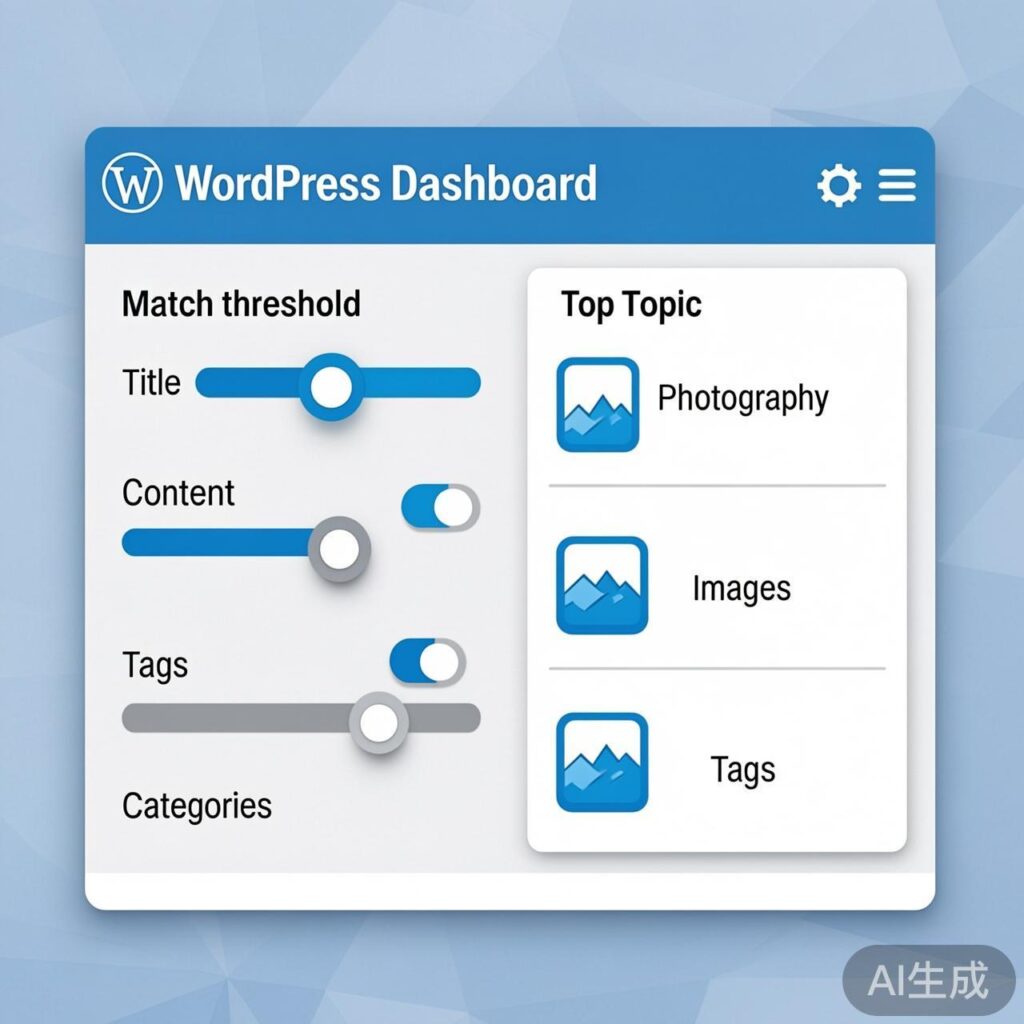
- Match Threshold: Default is 5. We recommend setting it to 3 to show more related posts and avoid empty results due to a high threshold.
- Consider: Check "Title," "Content," "Tags," and "Categories" to improve matching accuracy.
2. Display Options
This section controls how related posts appear on the front end.
- Output Template: Change the default
<p>Related posts:<ol>to a more suitable heading format, e.g.,<h3>Related Articles</h3><ol>. - End Template: Simplify
</ol></p>to</ol>. - No Results Text: Leave
<p>No related posts.</p>blank so nothing displays when no matches exist, keeping the page clean. - Sort Order: Under "Order results," select date (new to old) to sort by publication date descending.
3. RSS Display Options
These settings are similar to "Display Options" but control related posts in RSS feeds. Apply the same template modifications.
Verification & Usage
After saving your settings, open any post on your site. Check if a "Related Articles" list appears at the bottom or sidebar (depending on where you placed the YARPP widget or code).
Note: Since "No Results Text" is left blank, the area will show nothing if no related posts are found—this is expected.
Advanced Tips & Troubleshooting
- Caching: YARPP supports caching for performance. If changes don't appear immediately, clear WordPress and YARPP caches.
- Custom Styling: Use CSS to style the output
<h3>and<ol>list to better match your theme. - Performance: For large sites, relatedness calculations may impact performance. Ensure adequate server resources and enable YARPP caching.
By following these steps, you can successfully add an efficient, attractive related posts feature to your WordPress site, enhancing user engagement and time on page.