Problem Description
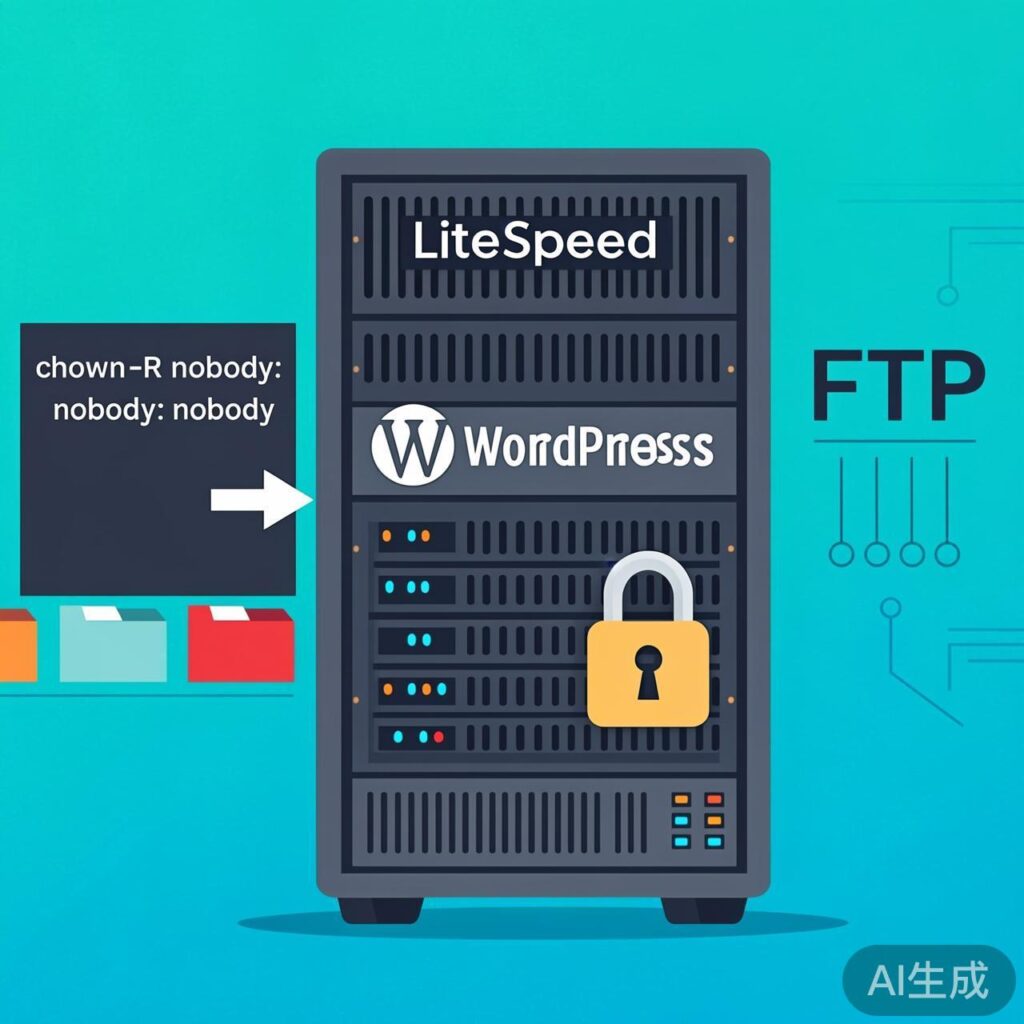
When running WordPress on a LiteSpeed server, you may be prompted for FTP/SFTP credentials when installing, updating, or deleting plugins or themes, instead of the system performing these operations directly via file permissions.
Root Cause
This issue typically occurs because the file ownership of the WordPress installation directory does not match the user/group under which the LiteSpeed web server process runs. LiteSpeed usually runs as the nobody user or under the lsadm group. If the WordPress files belong to a different user (e.g., root or your personal user), the web server process lacks sufficient write permissions. WordPress then falls back to attempting an FTP connection to gain the necessary access.
Solutions
The core solution is to change the file ownership of the WordPress directory to match the user and group of the LiteSpeed web server process.
Method 1: Change Ownership via SSH (Recommended)
Log in to your server via SSH and execute the following command:
chown -R nobody:nobody /path/to/your/wordpress/installationReplace /path/to/your/wordpress/installation with your actual WordPress path. For example, if your web root is /home/wwwroot/example.com/html, the command would be:
chown -R nobody:nobody /home/wwwroot/example.com/htmlCommand Explanation:
chown: Command to change file ownership.-R: Recursively apply the change to the directory and all its contents.nobody:nobody: Sets both the owner (user) and group tonobody. In some LiteSpeed configurations, the group might benogrouporlsadm; adjust based on your server setup.
Method 2: Modify wp-config.php (Temporary/Alternative)
If you cannot change file ownership, you can add the following line to your WordPress wp-config.php file to force the direct file system method:
define('FS_METHOD', 'direct');Add this line in wp-config.php before the line that says /* That's all, stop editing! Happy publishing. */.
Note: This method only instructs WordPress to attempt direct file writes. If the underlying file permission issue persists, you may encounter "Could not create directory" or write failure errors. It is not a substitute for correct permission settings.
Method 3: Check and Correct Directory Permissions
Ensure WordPress core directories have 755 permissions and files have 644 permissions. You can run:
find /path/to/wordpress -type d -exec chmod 755 {} \;
find /path/to/wordpress -type f -exec chmod 644 {} \;
Verification and Next Steps
- After changing ownership, return to your WordPress admin and try installing a plugin or theme.
- If the problem persists, verify the actual user and group LiteSpeed runs under using
ps aux | grep litespeedor by checking the LiteSpeed configuration. - Double-check that the path used in your commands is correct.
Security Reminder
While granting nobody ownership to the entire web directory is common, ensure you:
- Apply this only to necessary web directories (like
wp-content), avoiding excessive permissions on configuration files. - Keep WordPress and its plugins updated for security.
After completing these steps, WordPress should be able to install and update plugins and themes directly on your LiteSpeed server without requiring FTP credentials.