Working with tar.xz Files: Complete Command Guide
The .tar.xz format combines the tar archiver with the efficient xz compression algorithm, commonly used on Linux and Unix systems. This guide covers the essential commands for extracting and creating these archives.
Extracting a tar.xz Archive
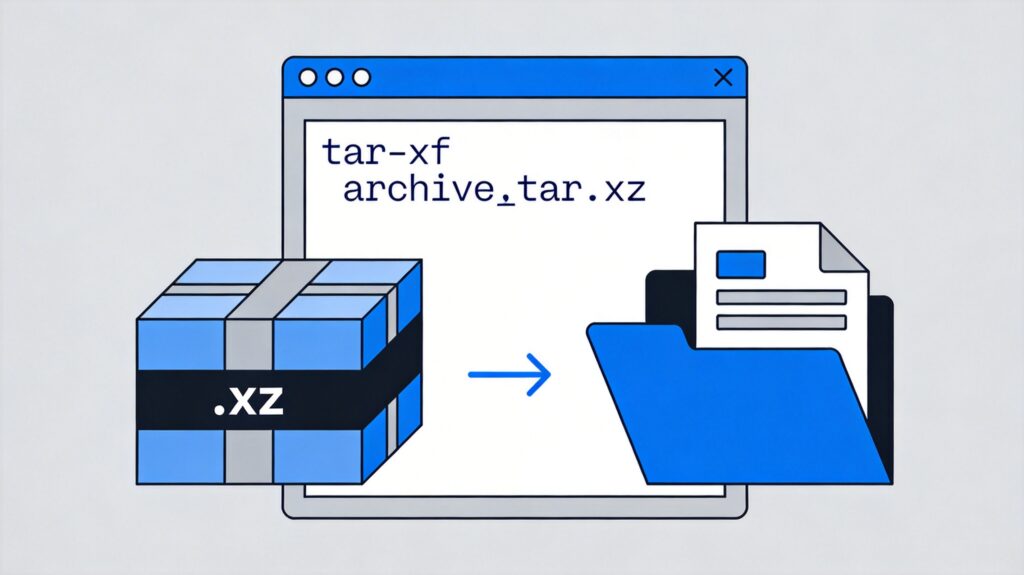
To extract a file named archive.tar.xz into the current directory, use:
tar -xf archive.tar.xzParameter breakdown:
-x: Extract mode.-f: Specify the filename.- Modern
tarversions auto-detect the.xzcompression, making the explicit-Jflag optional.
To extract to a specific directory, add the -C flag:
tar -xf archive.tar.xz -C /target/pathCreating a tar.xz Archive
To compress a directory named myfolder into archive.tar.xz:
tar -cJf archive.tar.xz myfolderParameter breakdown:
-c: Create mode.-J: Use xz compression.-f: Specify the output filename.
To archive multiple files or directories, list them at the end:
tar -cJf archive.tar.xz file1.txt file2.txt dir1/Common Additional Options
-v: Verbose mode. Lists files as they are processed.-z: For.tar.gzor.tgzfiles (gzip compression).-j: For.tar.bz2files (bzip2 compression).
Examples with verbose output:
tar -xvf archive.tar.xz
tar -cvJf archive.tar.xz myfolder
Note: Modern
tarimplementations typically auto-detect common compression formats (.gz,.bz2,.xz). The explicit-Jflag is mainly for clarity or ensuring compatibility with older systems.