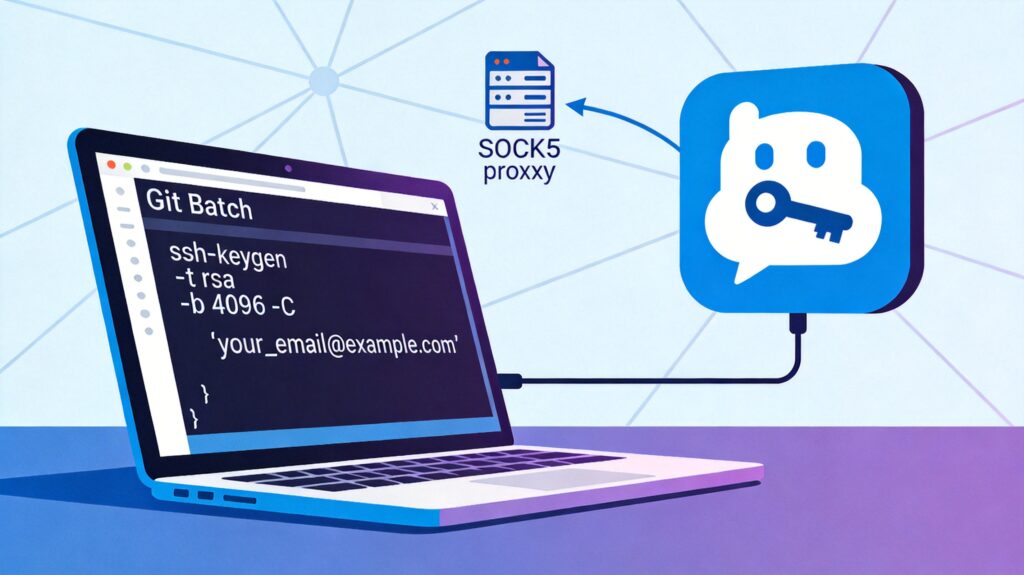
Generating SSH Key and Adding to GitHub
An SSH Key is a secure credential for connecting to GitHub, consisting of a key pair: a public key (uploaded to GitHub) and a private key (kept locally).
Method 1: Generate a New Key Using Git Bash
This is the recommended method for first-time setup.
- Open Git Bash.
- Run the following command, replacing
[email protected]with your GitHub registered email:ssh-keygen -t ed25519 -C "[email protected]"Note:
ed25519is a more secure and faster algorithm than olderrsa. If your system doesn't supported25519, fall back tossh-keygen -t rsa -b 4096 -C "[email protected]". - When prompted "Enter file in which to save the key," press Enter to use the default path (typically
~/.ssh/id_ed25519). - You'll be prompted to enter a passphrase to protect your private key. You can set a strong passphrase or press Enter to leave it empty (not recommended for lower security).
Enter passphrase (empty for no passphrase):
Enter same passphrase again:
After successful generation, you'll find two files in the ~/.ssh/ directory: id_ed25519 (private key, keep secret) and id_ed25519.pub (public key).
Method 2: Use an Existing SSH Key
If you already have a key pair generated by another tool (e.g., PuTTYgen), you can reuse it.
- Locate your private key file (e.g.,
id_rsa) and its corresponding public key file (e.g.,id_rsa.pub). - Ensure they are placed in Git's default SSH directory
~/.ssh/. If not, copy them there. - Open the public key file (
.pubfile) with a text editor (e.g., VS Code, Notepad++) and copy its entire content.
Add Public Key to GitHub Account
- Log in to GitHub, click your profile picture in the top-right, and go to Settings.
- In the left sidebar, select SSH and GPG keys.
- Click New SSH key.
- In the "Title" field, give the key a recognizable name (e.g., "My Laptop").
- In the "Key" field, paste the public key content you copied.
- Click Add SSH key to complete.
Configuring and Using SSH Key in Local Git
1. Start SSH Agent and Add Private Key
In Git Bash, run these commands to add the private key to the SSH agent for management:
# Start SSH agent (if not already running)
eval "$(ssh-agent -s)"
# Add default private key (e.g., id_ed25519) to agent
ssh-add ~/.ssh/id_ed25519
If prompted for a passphrase, enter the one you set when creating the key.
2. Test SSH Connection
Run this command to test the connection to GitHub:
ssh -T [email protected]If you see a message like this, the connection is successful:
Hi your_username! You've successfully authenticated, but GitHub does not provide shell access.Configuring SOCKS5 Proxy for Git (Speed Up Access)
In some network environments, accessing GitHub can be slow or restricted. If you have a usable SOCKS5 proxy (e.g., from clients like Shadowsocks or V2Ray providing a local proxy), you can set it up for Git to accelerate access.
Set Global SOCKS5 Proxy
Assume your proxy client provides SOCKS5 service on localhost (127.0.0.1) port 10808.
# Set proxy for HTTP/HTTPS protocol
git config --global http.proxy 'socks5://127.0.0.1:10808'
# Set proxy for SSH protocol (if needed for cloning via SSH)
git config --global core.gitproxy 'socks5://127.0.0.1:10808'
Remove Proxy Settings
When you no longer need the proxy, remove the global settings:
git config --global --unset http.proxy
git config --global --unset core.gitproxy
Use Proxy Only for Specific Domain
To use the proxy only for GitHub, configure like this:
git config --global http.https://github.com.proxy socks5://127.0.0.1:10808Common Issues and Solutions
SSL Certificate Error
Error message may look like:
fatal: unable to access 'https://github.com/...': error setting certificate verify locations:
  CAfile: /mingw64/ssl/certs/ca-bundle.crt
CApath: noneSolution: Tell Git the correct SSL certificate bundle path. First, find the ca-bundle.crt file in your Git installation directory (typically in Git/mingw64/ssl/certs/ or similar), then run:
git config --system http.sslCAInfo "D:Program FilesGitmingw64sslcertsca-bundle.crt"Replace the path with the actual one on your computer.
Basic Git Workflow After Setup
Once SSH and proxy are configured, you can use Git smoothly:
# 1. Clone repository (using SSH address)
git clone [email protected]:username/repository.git

# 2. Enter project directory, make changes
cd repository

# 3. Add changes to staging area and commit
git add .
git commit -m "Your commit message"

# 4. Push to remote repository
git push origin mainNote: Ensure you use the SSH format URL (starting with [email protected]:) for cloning, not the HTTPS format, to use SSH Key authentication.