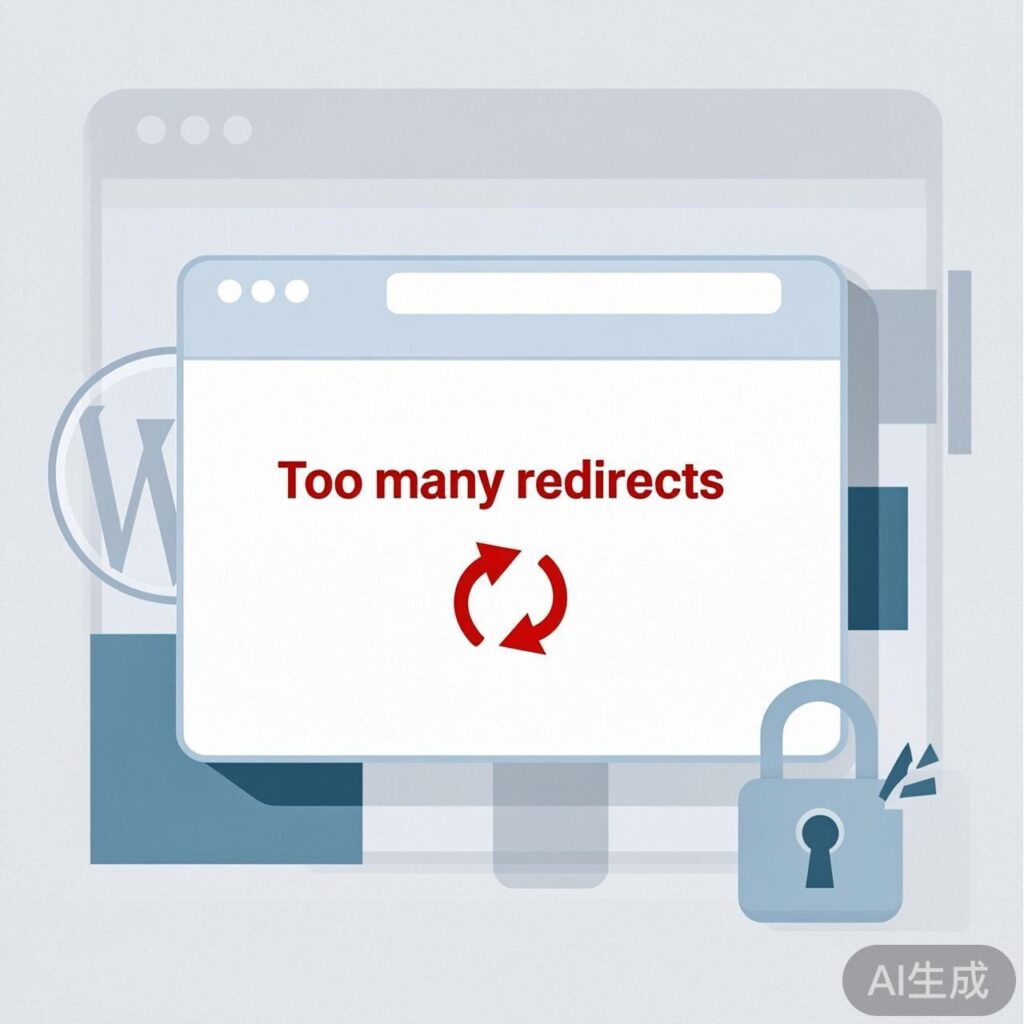
Problem Description
When accessing a newly installed WordPress website with HTTPS enabled in Chrome, you may encounter the error message "This page isn’t working redirected you too many times."
Solution
This issue is typically caused by WordPress configuration not correctly recognizing the HTTPS environment. You can resolve it by modifying the wp-config.php file in your website's root directory.
Steps to Fix
- Access your WordPress root directory via FTP, SFTP, or your hosting control panel's file manager.
- Locate and edit the
wp-config.phpfile. - Add the following code after the
<?phptag at the beginning of the file:
// Force WordPress to recognize HTTPS
$_SERVER['HTTPS'] = 'on';
// Force SSL for login and admin areas
define('FORCE_SSL_LOGIN', true);
define('FORCE_SSL_ADMIN', true);- Save the file and upload it back to the server.
- Clear your browser cache and revisit your website.
Code Explanation
$_SERVER['HTTPS'] = 'on';: Explicitly tells WordPress that HTTPS is being used.define('FORCE_SSL_LOGIN', true);: Forces the WordPress login page to use SSL.define('FORCE_SSL_ADMIN', true);: Forces the WordPress admin dashboard to use SSL.
Other Possible Causes and Checks
If the above method doesn't work, check the following:
- WordPress and Site Addresses: Ensure both "WordPress Address (URL)" and "Site Address (URL)" in Settings > General start with
https://. - Plugin or Theme Conflict: Temporarily disable all plugins and switch to a default theme (e.g., Twenty Twenty-Four) to see if the issue resolves.
- Server Configuration: Check your web server (e.g., Nginx or Apache) configuration files to ensure SSL redirect rules are correct and not creating a loop.
- .htaccess File: Inspect the
.htaccessfile in your root directory for rewrite rules that might cause a redirect loop.
Note: Always back up core configuration files before editing. If you use managed WordPress hosting, some settings may be controlled by your host; contact their support first.