Commands and Methods for Finding the Latest Files in Linux
In Linux systems, we often need to locate the most recently created or modified files. A common requirement is to find the latest N files in a specified directory. This article introduces efficient and practical command combinations.
Core Command
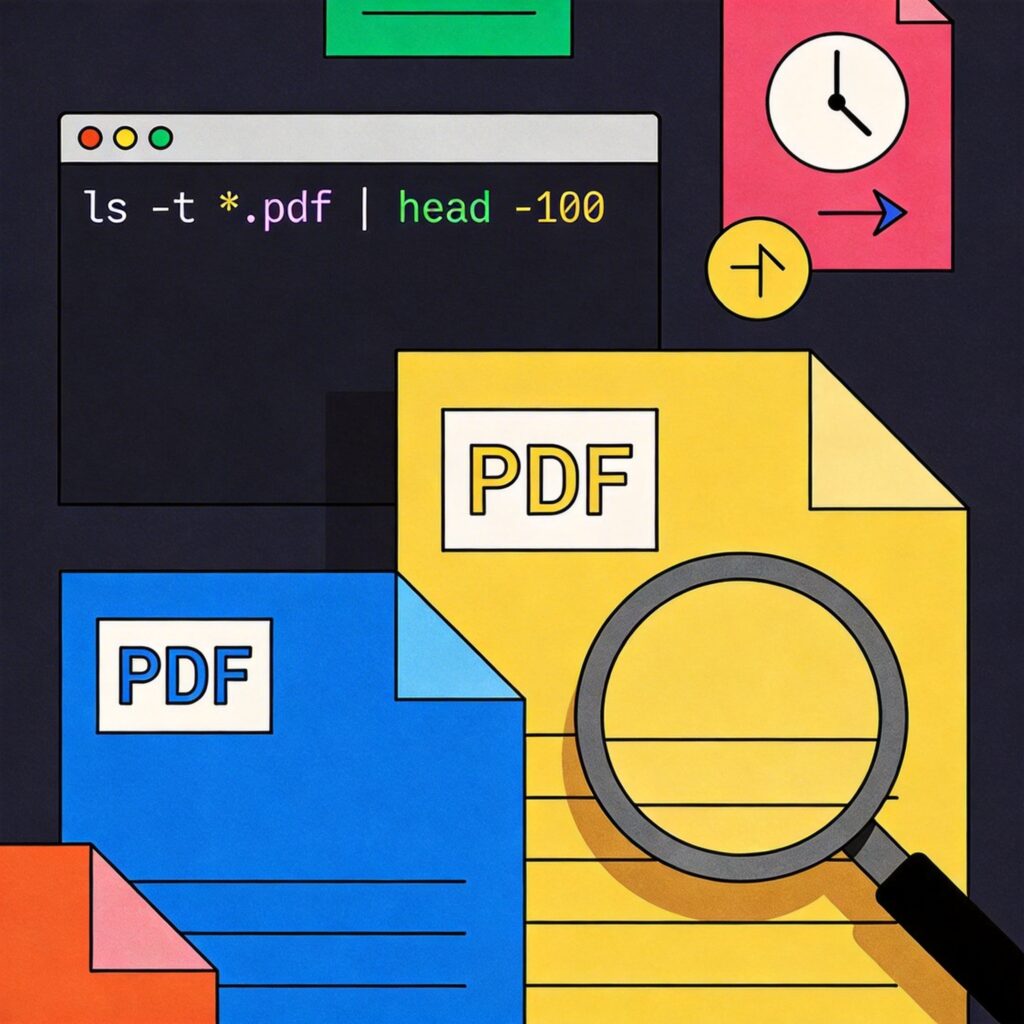
To find the 100 newest PDF files in the current directory, use the following command:
ls -t *.pdf | head -100Command breakdown:
ls -t: The-toption sorts files by modification time, with the newest first.*.pdf: A wildcard matching all PDF files. You can replace it with any other extension (e.g.,*.txt,*.log) or pattern.| head -100: The pipe sends the output oflsto theheadcommand.head -100displays only the first 100 lines (i.e., the first 100 files).
Handling Special Filenames (Spaces or Non-ASCII)
Simple ls output can be problematic for filenames containing spaces, non-ASCII characters, or other special characters, especially in scripts.
A more robust method uses find with -printf and sort:
find . -maxdepth 1 -name "*.pdf" -printf '%T@ %pn' | sort -rn | head -100 | cut -d' ' -f2-Command breakdown:
find . -maxdepth 1 -name "*.pdf": Finds all PDF files in the current directory (non-recursive).-printf '%T@ %pn': Prints the file's last modification timestamp (%T@) and full path (%p).sort -rn: Sorts numerically in reverse order (newest first).head -100: Takes the first 100 results.cut -d' ' -f2-: Removes the timestamp, keeping only the file path. This method handles complex filenames correctly.
Directly Deleting the Latest Files (Use with Caution)
If your goal is to delete these files, always verify the list first by running the find command alone before executing deletion.
Method 1: Using xargs (Recommended for many files)
ls -t *.pdf | head -100 | xargs rm -vMethod 2: Using command substitution
rm $(ls -t *.pdf | head -100)Important Warning: Before deleting files, especially with wildcards and pipes, always test the find command in a safe environment (e.g., run ls -t *.pdf | head -100 first) to ensure the listed files are exactly those you intend to delete. Accidental deletion can cause data loss.
Summary
Finding the latest files is a common task in Linux system administration. For simple scenarios, the ls -t | head -n combination is quick and effective. For complex filenames or when more precise control is needed, the find command approach is recommended. Always preview results before performing destructive operations like deletion.