Enabling SSH and Using the Root Account in Synology DSM 6
Synology DSM, for security reasons, disables direct SSH login for the root account by default. However, you can enable SSH and gain root access by following these steps.
Step 1: Enable SSH Service in DSM
- Log in to the DSM management interface.
- Go to Control Panel > Terminal & SNMP.
- Under the "Terminal" tab, check Enable SSH service and set a port (default is 22).
- Click Apply to save the settings.
Step 2: Connect with an SSH Client
Use an SSH client like PuTTY or Terminal to connect to your Synology NAS's IP address and SSH port. For the first login, use your administrator username (usually admin) and its corresponding password.
Step 3: Switch to the Root Account and Set a Password
After logging in, execute the following commands in order:
-
Switch from the admin account to root:
sudo su -The system will prompt for the current admin account's password.
-
Set a new password for the root account (e.g.,
MyStrongPass123!):synouser --setpw root MyStrongPass123!Note: For security, always use a strong, unique password. Do not use the example password.
Once completed, you can log in directly via SSH using the username root and the password you set.
Using nohup for Background Command Execution
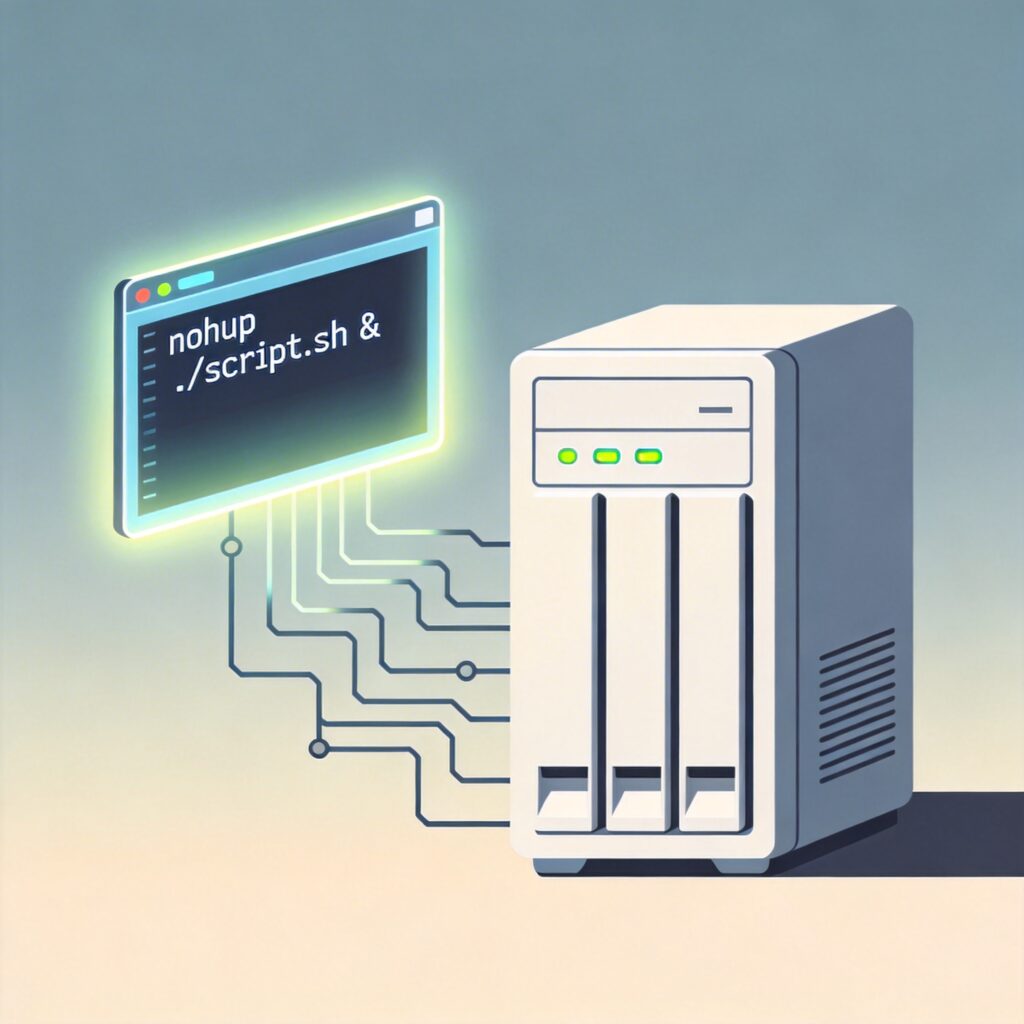
Installing terminal multiplexers like screen or tmux on Synology DSM can be complex. A simple, built-in alternative is the nohup command, which allows a process to continue running in the background after you close your SSH session.
Basic Usage
The command format is:
nohup your_command &For example, to run a script named download.sh in the background:
nohup ./download.sh &Explanation
- nohup: Ignores the hangup signal (SIGHUP), ensuring the command continues after terminal closure.
- &: Runs the command in the background, returning you to the terminal prompt immediately.
- By default, output is redirected to a file named
nohup.outin the current directory. You can customize the output file:nohup ./download.sh > mylog.log 2>&1 &.
Following these steps, you can successfully enable SSH, use the root account, and manage long-running background tasks with nohup on your Synology DSM 6 system.