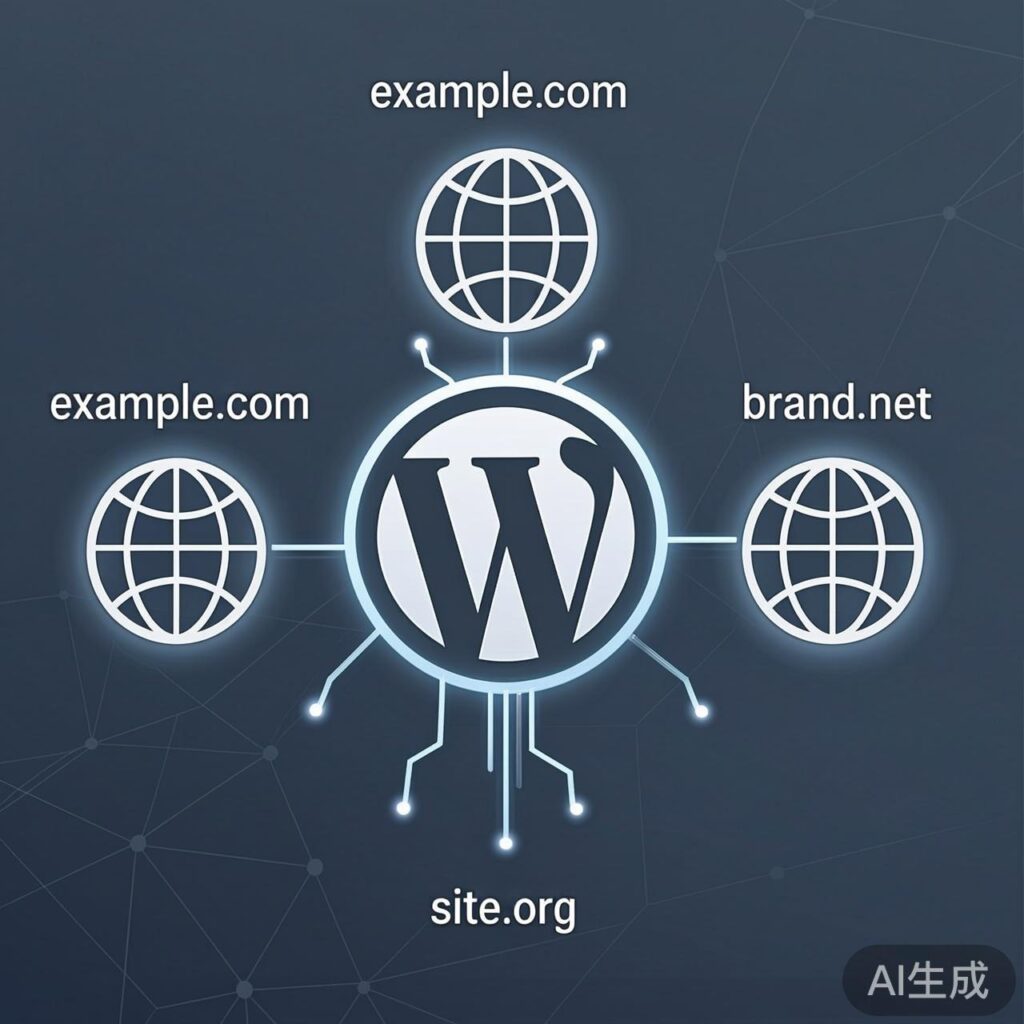
Overview of WordPress Multi-Domain Binding
In certain business scenarios, you may need a single WordPress site to be accessible via multiple different domain names. Common use cases include brand protection, marketing campaigns, or domain migration transition periods. This guide details how to safely and correctly configure WordPress to support multi-domain access.
Prerequisites and Configuration Steps
Enabling multi-domain access for WordPress requires configuration at both the server (backend) and WordPress (application) levels.
Step 1: Server Domain Resolution and Binding
- Domain Name Resolution: At your domain registrar or DNS management platform, point the A records or CNAME records for all domains you wish to bind (e.g.,
example.com,brand.net) to your web server's IP address. - Server Virtual Host Configuration: On your web server (e.g., Nginx, Apache), configure virtual hosts for these domains, ensuring they all point to the same WordPress installation directory.
- Using LNMP one-click install: You can run the
lnmp vhost addcommand multiple times to add domains, specifying your main WordPress directory (e.g.,/home/wwwroot/wordpress) as the website root each time. - Manual Configuration: For Nginx, you can use multiple
serverblocks in your main configuration, or use multipleserver_namedirectives within a singleserverblock. The key is that all configuredrootpaths must be identical.
- Using LNMP one-click install: You can run the
Step 2: Modify the WordPress Configuration File
This is the core step. It dynamically sets WordPress's site addresses (URLs) to respond to different access domains. Edit the wp-config.php file in your WordPress root directory. Add the following code before the line that says /* That's all, stop editing! Happy publishing. */:
// Multi-domain configuration: Dynamically set site URLs based on the accessed domain.
// Define an array of domains that use HTTPS.
$https_domains = array(
    "www.primary.com",
    "primary.com",
    "secure.example.net"
);
// Define an array of domains that use HTTP.
$http_domains = array(
    "www.secondary.com",
    "secondary.com",
    "legacy-brand.org"
);

// Get the currently accessed domain.
$current_domain = $_SERVER['HTTP_HOST'];

// Check and set the URL for HTTPS sites.
if ( in_array( $current_domain, $https_domains ) ) {
    define( 'WP_SITEURL', 'https://' . $current_domain );
    define( 'WP_HOME', 'https://' . $current_domain );
}
// Check and set the URL for HTTP sites.
elseif ( in_array( $current_domain, $http_domains ) ) {
    define( 'WP_SITEURL', 'http://' . $current_domain );
    define( 'WP_HOME', 'http://' . $current_domain );
}
// Optional: Set a default (usually your primary domain) for unlisted domains to prevent errors.
// else {
//     define( 'WP_SITEURL', 'https://www.primary.com' );
//     define( 'WP_HOME', 'https://www.primary.com' );
// }
Code Explanation and Important Notes
- Protocol Separation: The example code separates HTTPS and HTTP domains, which is a best practice. Place each domain in the correct array based on its actual SSL certificate configuration.
- Dynamic Definition:
WP_SITEURLandWP_HOMEare core WordPress address constants. Dynamically defining them allows WordPress to generate correct links, redirects, and load resources based on the user's access domain. - Avoid Hardcoding: This method is superior to statically setting a single domain in WordPress Admin under Settings > General, as it flexibly adapts to multiple access points.
- Caching and Plugins: After configuration, clear all caches (server, CDN, and WordPress caching plugins like W3 Total Cache or WP Super Cache). Some plugins may require additional configuration for multi-domain setups.
- SEO Considerations: From an SEO perspective, multiple domains serving identical content may be seen as duplicate content. It's advisable to specify the canonical URL using
rel="canonical"tags or by setting a preferred domain in Google Search Console.
Summary
Binding multiple domains to a single WordPress site involves two main steps: 1) Point all domains to the same program directory at the server level; 2) Use conditional code in wp-config.php to dynamically set WP_SITEURL and WP_HOME. After configuration, perform comprehensive functional and link testing to ensure the site operates correctly under all domains.