Introduction
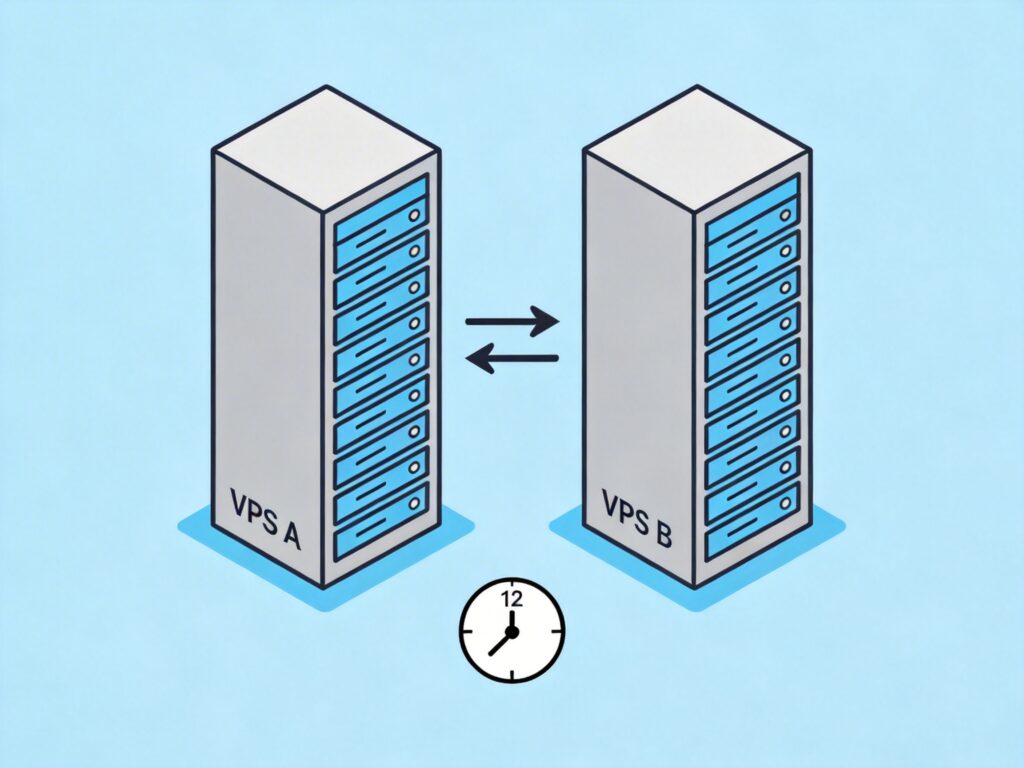
This guide details a method for setting up daily automated backups between two VPS servers using rsync. We assume VPS A is the production server hosting the website, and VPS B is the backup server. Both are running CentOS. The goal is for VPS B to automatically pull website files and database backups from VPS A on a schedule.
Part 1: VPS A (Source Server) Setup
VPS A acts as the rsync server. We will configure the rsync daemon and set up a MySQL backup script.
1. Install rsync
Install rsync using yum:
yum -y install rsyncFor traditional daemon mode (common on older CentOS), add it to startup:
echo 'rsync --daemon' >> /etc/rc.d/rc.localNote: For modern CentOS/RHEL 7+ using systemd, it's better to use systemctl enable rsyncd if using the packaged service. This guide uses the traditional daemon method.
2. Set rsync Authentication Password
Create a password file with the format 'username:password':
echo 'your_username:your_password' > /etc/rsyncd.scrt
chmod 600 /etc/rsyncd.scrt
This username and password will be used by VPS B to connect.
3. Configure rsync Service
Edit the configuration file /etc/rsyncd.conf:
uid = root
gid = root
use chroot = no
read only = yes
max connections = 10

port = 873
pid file = /var/run/rsyncd.pid
lock file = /var/run/rsync.lock
#log file = /var/log/rsync.log
log format = %t %a %m %f %b
syslog facility = local3
timeout = 300

[www]
path = /var/www/
comment = Website Data
ignore errors
read only = yes
list = no
auth users = your_username
secrets file = /etc/rsyncd.scrt
exclude from = /etc/rsync_exclude.txt
hosts allow = VPS_B_IP_ADDRESS
hosts deny = *
Key Configuration Points:
[www]: Module name, specified by the client during connection.path: Source directory to synchronize.auth users: Allowed username for authentication.hosts allow: Must be replaced with the real IP address of VPS B for security.
4. Define Exclusion List
Create an exclusion file /etc/rsync_exclude.txt. List directories (relative to the path) that should not be backed up, one per line:
cache/
temp/
5. Create rsync Restart Script
Create a script /root/rsyncd_restart.sh to restart the rsync daemon:
#!/bin/bash
kill -9 `cat /var/run/rsyncd.pid`
rm -f /var/run/rsyncd.pid
rm -f /var/run/rsync.lock
rsync --daemon
Make it executable:
chmod 600 /root/rsyncd_restart.sh
chmod +x /root/rsyncd_restart.sh
You can now restart the service with /root/rsyncd_restart.sh.
6. Configure MySQL Automatic Backup Script
Create a script /root/mysql_backup.sh to back up multiple databases and clean old backups:
#!/bin/bash
# Configuration
mysql_user="USER"
mysql_password="PASSWORD"
mysql_host="localhost"
mysql_port="3306"
mysql_charset="utf8mb4"
backup_db_arr=("db1" "db2")
backup_location=/var/www/mysql
expire_backup_delete="ON"
expire_days=3

# Internal variables
backup_time=$(date +%Y%m%d%H%M)
backup_Ymd=$(date +%Y-%m-%d)
backup_dir=$backup_location/$backup_Ymd

# Check if MySQL is running
mysql_ps=$(ps -ef | grep mysqld | grep -v grep | wc -l)
mysql_listen=$(netstat -an | grep LISTEN | grep ":$mysql_port" | wc -l)
if [[ $mysql_ps -eq 0 ]] || [[ $mysql_listen -eq 0 ]]; then
    echo "ERROR: MySQL is not running! Backup stopped."
    exit 1
fi

# Test connection
mysql -h$mysql_host -P$mysql_port -u$mysql_user -p$mysql_password -e "SELECT 1" > /dev/null 2>&1
if [ $? -ne 0 ]; then
    echo "ERROR: Can't connect to MySQL server! Backup stopped."
    exit 1
fi

# Start backup
if [ "${#backup_db_arr[@]}" -gt 0 ]; then
    mkdir -p $backup_dir
    for dbname in "${backup_db_arr[@]}"
    do
        echo "Backing up database: $dbname"
        mysqldump -h$mysql_host -P$mysql_port -u$mysql_user -p$mysql_password
        --single-transaction --routines --triggers --default-character-set=$mysql_charset $dbname | gzip > $backup_dir/${dbname}-${backup_time}.sql.gz
        if [ $? -eq 0 ]; then
            echo "Database $dbname backed up successfully."
        else
            echo "ERROR: Failed to backup database $dbname"
        fi
    done
else
    echo "ERROR: No database specified for backup."
    exit 1
fi

# Clean expired backups
if [ "$expire_backup_delete" == "ON" ] && [ -n "$backup_location" ]; then
    find $backup_location -type d -mtime +$expire_days -exec rm -rf {} ; 2>/dev/null
    echo "Expired backups older than $expire_days days deleted."
fi

echo "All databases backed up successfully."
Make it executable:
chmod 600 /root/mysql_backup.sh
chmod +x /root/mysql_backup.sh
Add it to crontab to run daily at 00:00:
0 0 * * * /root/mysql_backup.shVPS A setup is now complete. Website files are available via the rsync module, and database backups are generated in /var/www/mysql/, which is within the rsync sync path.
Part 2: VPS B (Backup Server) Setup
VPS B acts as the rsync client, pulling data from VPS A on a schedule.
1. Install rsync
yum -y install rsyncThe client does not need a persistent service, so no startup configuration is required.
2. Set rsync Password File
Create a file containing only the password (not 'username:password'):
echo 'your_password' > /etc/rsync.pass
chmod 400 /etc/rsync.pass
3. Test Synchronization
Create a local storage directory:
mkdir -p /var/rsync/Run a test sync command:
rsync -avzP --delete --password-file=/etc/rsync.pass username@VPS_A_IP::www /var/rsync/website_backup/Command Parameter Explanation:
-avzP: Archive mode, verbose, compress, show progress.--delete: Makes the target directory an exact mirror of the source.--password-file: Specifies the password file path.username@VPS_A_IP::www: Connects to VPS A's rsync service using the 'www' module.- The last argument is the local storage path.
4. Add to Crontab
Edit crontab to run the sync daily at 00:30 (after MySQL backup completes at 00:00):
30 0 * * * rsync -avzP --delete --password-file=/etc/rsync.pass username@VPS_A_IP::www /var/rsync/website_backup/ > /dev/null 2>&1Output is redirected to /dev/null to avoid unnecessary log emails.
Summary and Extensions
You have now established an automated backup system from VPS A to VPS B, covering both website files and databases.
For enhanced data security, consider adding a "VPS C" to sync from VPS B, creating a geographically separate second backup. The configuration would be similar to VPS B pulling from A.
Important Notes:
- Ensure the firewall on VPS A allows traffic on port 873 (or your custom rsync port).
- Set strict permissions on password files to prevent leaks.
- Regularly check backup logs and verify backup file integrity.
- For modern Linux distributions, consider using systemd services or timers to manage rsync and scheduled tasks.