How to Copy Data in Linux While Preserving Permissions and Attributes
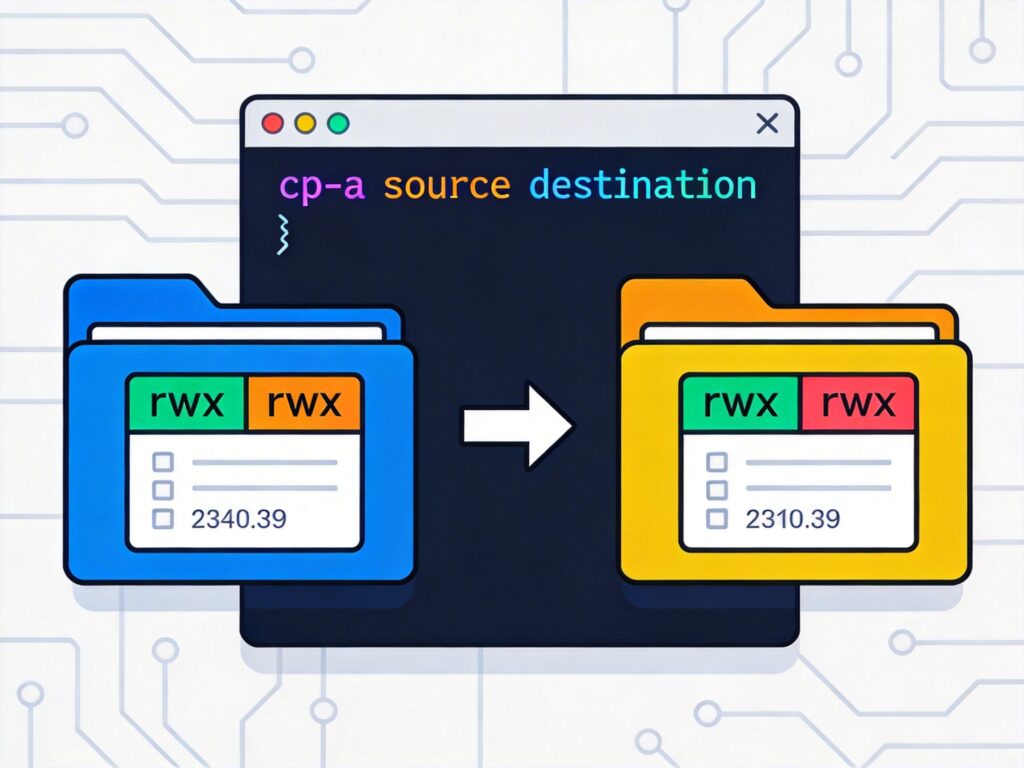
When copying files or directories in Linux systems (such as CentOS, Debian, or FreeBSD) using the cp command, the default behavior does not preserve all source file attributes (like permissions, ownership, timestamps, etc.). To maintain these attributes during the copy process, specific command-line options are required.
Core Command and Options
The most common and recommended command for preserving all attributes is:
cp -a source destinationOr, using the more verbose form:
cp --archive source destinationThe -a (or --archive) option is a composite flag. Its effect is equivalent to -dpr or --no-dereference --preserve=all --recursive. This means it will:
- Recursively copy (
-r): Copy directories and all their contents. - Preserve all attributes (an enhanced
-p): Maintain permissions, ownership (user and group), and timestamps (modification time, access time, etc.). - Preserve symbolic links (
-d): Copy the symlink itself, not the file it points to.
Other Useful cp Command Options
Other cp options are valuable in specific scenarios:
-por--preserve: Preserve specified attributes. Can be used alone (e.g.,cp -p file1 file2preserves permissions, ownership, and timestamps but does not copy directories recursively). Use--preserve=mode,ownership,timestampsfor precise control.-r,-R, or--recursive: Copy directories recursively. Necessary for directory structures, but alone does not preserve ownership.-vor--verbose: Display detailed progress of the copy operation.-uor--update: Copy only when the source file is newer than the destination or if the destination is missing. Useful for incremental backups.-ior--interactive: Prompt before overwriting existing files, improving safety.-xor--one-file-system: Restrict copying to the current filesystem; do not cross mount points (e.g., avoid copying/proc,/sys, or network mounts). Useful for system backups.
Practical Examples
Example 1: Full directory copy with all attributes
cp -a /home/user/data /backup/This command copies the entire /home/user/data directory and its contents to /backup/, preserving all permissions, ownership, and timestamps.
Example 2: Copy with verbose output and update-only
cp -auv source_folder/ destination_folder/The -auv combination means: archive mode (preserve attributes), update only newer files, and show verbose output.
Example 3: Copy root filesystem while avoiding other mounts
cp -ax / /mnt/backup_root/This attempts to copy the root directory / to a backup location. The -x option prevents copying virtual filesystems like /proc, /sys, /dev, or other separately mounted partitions.
Important Notes and Common Issues
- Permission Issues: Even with
-a, if the user lacks sufficient privileges (e.g., a non-root user trying to preserve file ownership they don't own), some attributes may not be retained. Usingsudois often necessary to preserve original owners and groups. - Symbolic Links: The
-dcomponent in-aensures symlinks are copied as links. To dereference and copy the actual target files, avoid-aor-d. - Sparse Files: For sparse files (files with large "holes"), the
--sparse=autooption enablescpto detect and optimize copying, saving disk space. - FreeBSD Systems: The
cpcommand on FreeBSD may have slight differences from GNU coreutils (common on Linux). For cross-platform scripts, test the behavior of-aor-pR.
In summary, for copying data in Linux and related systems while keeping all permissions, ownership, timestamps, and other attributes intact, the cp -a command is the simplest and most reliable choice. For advanced needs, combine it with options like -v (verbose), -u (update only), and -x (restrict to one filesystem) to suit specific backup or migration scenarios.