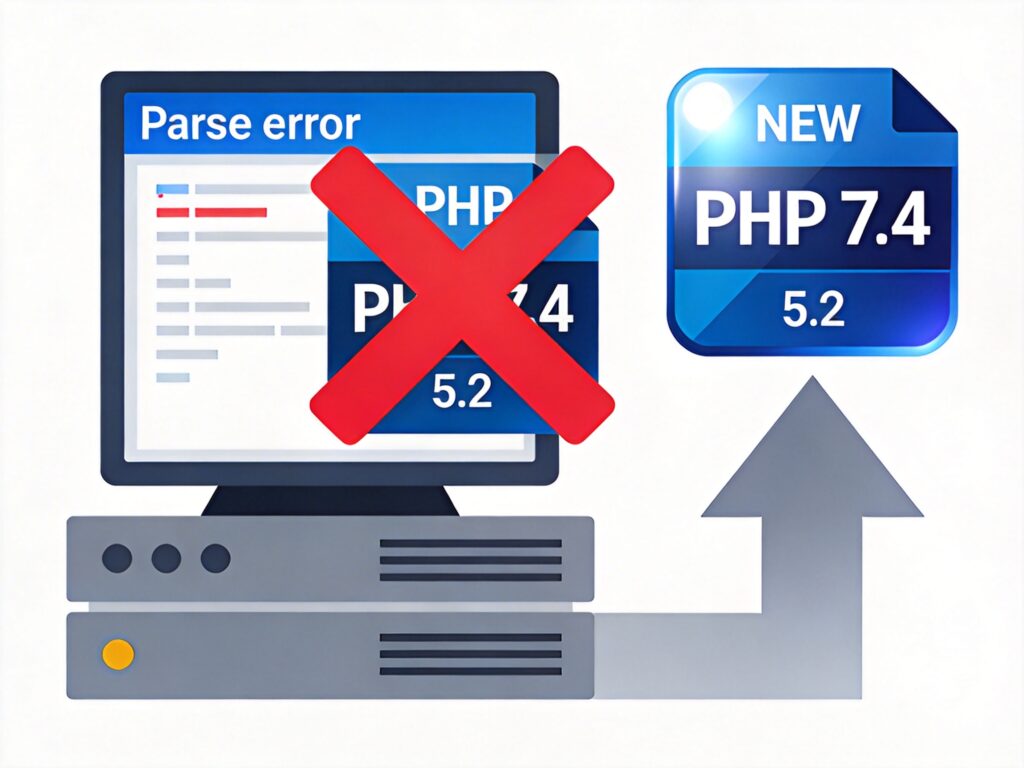
Problem Description
When activating the Nginx Helper plugin in the WordPress admin dashboard, a fatal error appears with the following message:
Parse error: syntax error, unexpected T_STRING in /home/wwwroot/yourdomain.com/wp-content/plugins/nginx-helper/nginx-helper.php on line 14
This error prevents the plugin from being activated and may affect website functionality.
Root Cause Analysis
The core cause is an outdated PHP version on the server, which is incompatible with the plugin's syntax requirements.
- Error Interpretation: "Parse error" indicates the PHP parser encountered a problem while analyzing the code. "unexpected T_STRING" typically means the parser encountered an unexpected string (e.g., a namespace declaration, specific class or function name) that is not supported in older PHP versions.
- Primary Reason: The Nginx Helper plugin (especially newer versions) uses syntax features that require PHP 5.3 or higher (e.g.,
namespace, late static binding, short array syntax[]). When the server runs a PHP version below 5.3, the parser cannot recognize these new syntax elements, throwing this error.
Solution
The only reliable fix is to upgrade your server's PHP version.
Step 1: Check Current PHP Version
Log into your server control panel (e.g., cPanel, Plesk) or use SSH to check the PHP version.
php -vAlternatively, create an info.php file in your website root with the content <?php phpinfo(); ?> and access it via browser to see details.
Step 2: Upgrade PHP Version
Depending on your server environment, choose one method:
- Using Host Control Panel: Most shared hosting providers (e.g., Bluehost, SiteGround) offer a PHP version switcher. Switch to PHP 7.4 or higher (recommended for better performance and security).
- Self-Managed Server: If you manage your own VPS or dedicated server, update PHP packages via your package manager. For example, on Ubuntu/Debian:
sudo apt update
sudo apt install php7.4-fpm php7.4-mysql
Then configure your web server (Nginx/Apache) to use the new PHP-FPM.
Step 3: Verify and Activate Plugin
- After upgrading PHP, restart your web server (Nginx/Apache) and PHP-FPM service.
- Return to the WordPress admin "Plugins" page.
- Try activating the Nginx Helper plugin again. The error should be gone, and the plugin should activate normally.
Additional Notes & Recommendations
- Version Compatibility: Always ensure your server environment (PHP, MySQL/MariaDB) meets the minimum requirements of your WordPress core, theme, and plugins. WordPress officially recommends PHP 7.4 or higher.
- Backup Before Upgrading: Before making any server changes (especially major PHP version upgrades), fully back up your website files and database to prevent compatibility issues.
- Plugin Alternatives: If you cannot upgrade PHP, you could look for alternative caching or Nginx configuration plugins, but upgrading PHP is strongly recommended as the best practice for security and performance.
Upgrading PHP not only resolves the Nginx Helper compatibility issue but also makes your entire WordPress site faster and more secure.