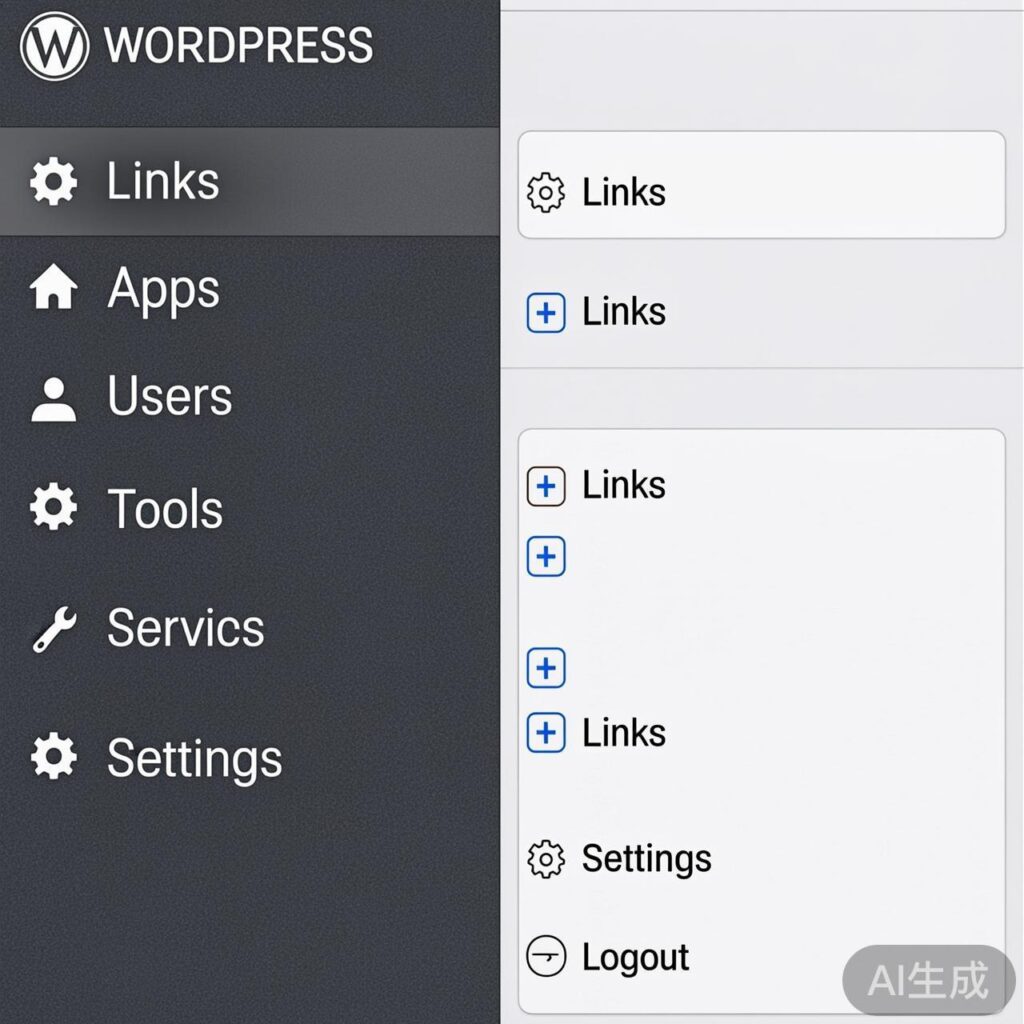
How to Enable the Links Manager in WordPress Admin
Starting with WordPress 3.5, the built-in Links Manager (often used for blogrolls or friend links) is hidden by default. The functionality still exists in the core but is disabled. This guide shows you how to re-enable it in your admin dashboard and display the links on your site.
Step 1: Enable the Links Manager
To make the 'Links' menu appear in your WordPress admin, add the following code to your theme's functions.php file:
// Enable the WordPress Links Manager
add_filter( 'pre_option_link_manager_enabled', '__return_true' );
After saving the file, refresh your WordPress admin page. You should now see a 'Links' menu item in the left-hand sidebar.
Step 2: Add and Manage Your Links
Use the new Links → Add New menu to create your blogroll entries. Fill in the URL, name, and other optional details like description and rating.
Step 3: Display Links on Your Site
To output the saved links on your front end, use the wp_list_bookmarks() template tag. Place the following code in your theme template (e.g., sidebar.php or footer.php):
<?php wp_list_bookmarks('title_li=&categorize=0'); ?>Function Parameters Explained
The wp_list_bookmarks() function is highly customizable. Here's what the parameters in the example do:
title_li=– Hides the default list title (e.g., 'Bookmarks').categorize=0– Displays all links in a single list without grouping them by category.
You can modify these parameters. For example, to show a custom title and group links by category, use:
<?php wp_list_bookmarks('title_li=<h2>Blogroll</h2>'); ?>For a full list of available parameters, refer to the official WordPress Developer Documentation on wp_list_bookmarks().
Important Notes
- This feature is a legacy part of WordPress core. It is fully functional but may not be actively developed for new features.
- If you change themes, you must re-add the code snippet to the new theme's
functions.phpfile, or use a functionality plugin to make the change theme-independent. - The code is safe and will not conflict with other standard WordPress functions.