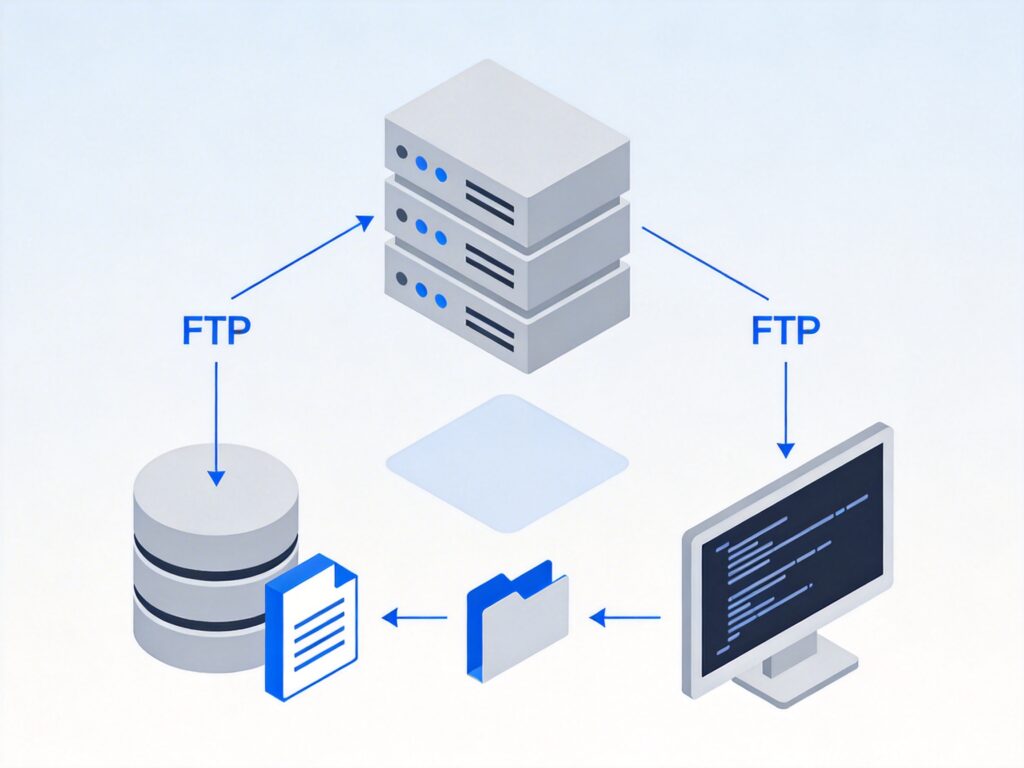
Script Configuration and Usage Steps
This guide details how to configure and use an automated backup script to back up your MySQL databases and website files to a remote FTP server.
1. Modify the Backup Script
First, navigate to your home directory and edit the backup script file:
cd ~
vi lnmp1.2-full/tools/backup.sh
After opening the file with Vim, modify the configuration parameters according to the 'Script Parameter Details' section below.
2. Create Local Backup Directory
After editing, create a directory under /home/ to temporarily store backup files and set its permissions:
cd /home/
mkdir backup
chmod 777 backup
3. Install FTP Client Tool
The script uses lftp for file transfer. Ensure it is installed:
yum install lftpScript Parameter Details
Below are the key parameters you need to modify according to your environment. Read the comments carefully and fill them in.
# Local directory for backup files. Ensure it exists and is writable.
Backup_Home="/home/backup/"

# Full path to the mysqldump command.
# Note: If using MariaDB, replace `mysql` with `mariadb` in the path.
MySQL_Dump="/usr/local/mysql/bin/mysqldump"

# Website directories to back up, enclosed in quotes, separated by spaces.
# Example: Backup files for aaa.com and bbb.com
Backup_Dir=("/home/wwwroot/aaa.com" "/home/wwwroot/bbb.com")

# Database names to back up, separated by spaces.
Backup_Database=("aaaDB" "bbbDB")

# MySQL root account credentials
MYSQL_UserName='root'
MYSQL_PassWord='yourrootpassword'  # Replace with your actual root password

# Enable FTP remote backup. 0 = Enable, 1 = Disable. Default is 0.
Enable_FTP=0

# FTP server connection information
FTP_Host='1.1.1.1'          # Replace with your FTP server IP or domain
FTP_Username='ftp'          # FTP username
FTP_Password='yourftppassword' # FTP password
# Directory on the FTP server for storing backups.
# Ensure this directory exists on the FTP server and is writable.
FTP_Dir="/backup"
# End of parameter settingsNote: The above paths and configuration examples are based on the LNMP one-click installation package. If you use a different web environment (e.g., LAMP, cPanel, etc.), adjust the paths accordingly (e.g., MySQL installation path, website root directory).
Executing the Backup
Method 1: Manual Backup
After connecting to your VPS via SSH, run the following command (ensure the script path matches your LNMP version):
cd ~/lnmp1.2-full/tools/
/bin/bash backup.sh
Method 2: Schedule Automatic Backups with Cron
To automate, add a Crontab task. For example, to run the backup daily at 5 AM:
crontab -eIn the editor, add the following line:
00 05 * * * /bin/bash ~/lnmp1.2-full/tools/backup.shSave and exit. The scheduled task will take effect.
Common Issues and Solutions
Issue: MySQL Permission Error During Backup
You might encounter the following error when running the script:
mysqldump: Got error: 1045: Access denied for user 'root'@'localhost' (using password: YES) when trying to connectThis indicates incorrect MySQL username or password in the script configuration, preventing database connection.
Solution 1: Reset MySQL Root Password (If Forgotten)
Warning: This operation restarts the MySQL service. Perform during maintenance windows.
# Stop MySQL service
/etc/init.d/mysql stop

# Start MySQL in safe mode, skipping privilege verification
mysqld_safe --user=mysql --skip-grant-tables --skip-networking &

# Connect to MySQL
mysql -u root mysql

# At the MySQL prompt, run (replace 'newpassword' with your new password)
UPDATE user SET authentication_string=PASSWORD('newpassword') WHERE User='root';
FLUSH PRIVILEGES;
quit

# Restart MySQL service
/etc/init.d/mysqld restart

# Test connection with new password
mysql -uroot -p
Important Update: For MySQL 5.7 and above, the password field is authentication_string, not Password. Adjust the SQL statement based on your MySQL version.
Solution 2: Verify Connection Credentials
- Check via phpMyAdmin: Log into phpMyAdmin, view the
mysql.usertable, and confirm the host (usuallylocalhost) and password hash for therootuser. - Confirm Password: Ensure the
MYSQL_PassWordvalue in the script exactly matches the password you use to log in viamysql -uroot -p. Passwords are case-sensitive. - Check User Permissions: Sometimes a non-root database user is used. Verify the owner user and password for the databases listed in
Backup_Databaseand use those credentials in the script.
After correcting or confirming the password, re-run the backup command.