Moving All Contents from One Directory to Another in Linux
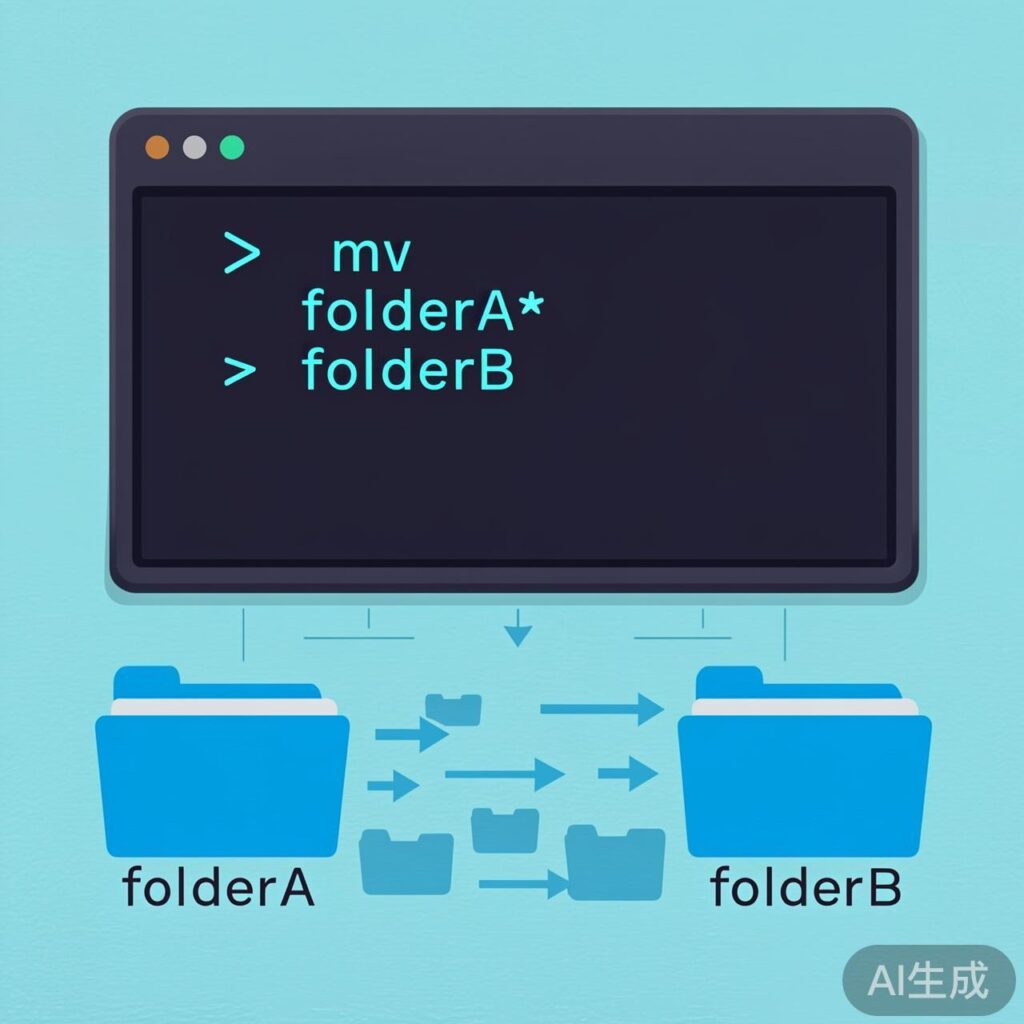
In Linux, the mv command is used to move files and directories. To move all contents (including files and subdirectories) from one folder to another, you can use the wildcard *.
Basic Command Format
mv source_directory/* target_directoryThis command moves all files and folders from source_directory into target_directory, but does not move the source_directory itself.
Example Usage
To move all contents from /home/wwwroot/example.com/AAA to /home/wwwroot/example.com, use:
mv /home/wwwroot/example.com/AAA/* /home/wwwroot/example.comNote: A trailing slash / on the target path is optional. Ensure the target directory exists.
Renaming with mv
The mv command can also rename files or directories. The syntax is the same: specify the old name as the source and the new name as the target.
Syntax and Common Options
Basic syntax:
mv [options] source targetCommon options:
-ior--interactive: Prompt before overwriting.-for--force: Force overwrite without prompting.-nor--no-clobber: Do not overwrite existing files.-uor--update: Move only when source is newer than target or target is missing.-vor--verbose: Show detailed output.-bor--backup: Create a backup of overwritten files (default suffix:~).
Important Considerations
- Permissions: The user must have read permission for the source and write permission for the target directory.
- Overwriting: By default,
mvoverwrites existing files with the same name. Use-ifor interactive confirmation or-nto prevent overwrites in critical operations. - Hidden Files: The
*wildcard does not match hidden files (starting with.). To move hidden files, you can usemv source_directory/.* target_directory/, but be cautious as this also matches.and... For safer handling, consider usingrsync. - Cross-Filesystem Moves: Moving between different filesystems (partitions) performs a copy-and-delete operation, which may take longer.
Alternative: Using rsync
For more complex or safer moves (especially with many files or when preserving permissions and symlinks), use rsync. Example to move and delete source files:
rsync -av --remove-source-files source_directory/ target_directory/Afterward, remove the empty source directory with rmdir source_directory.