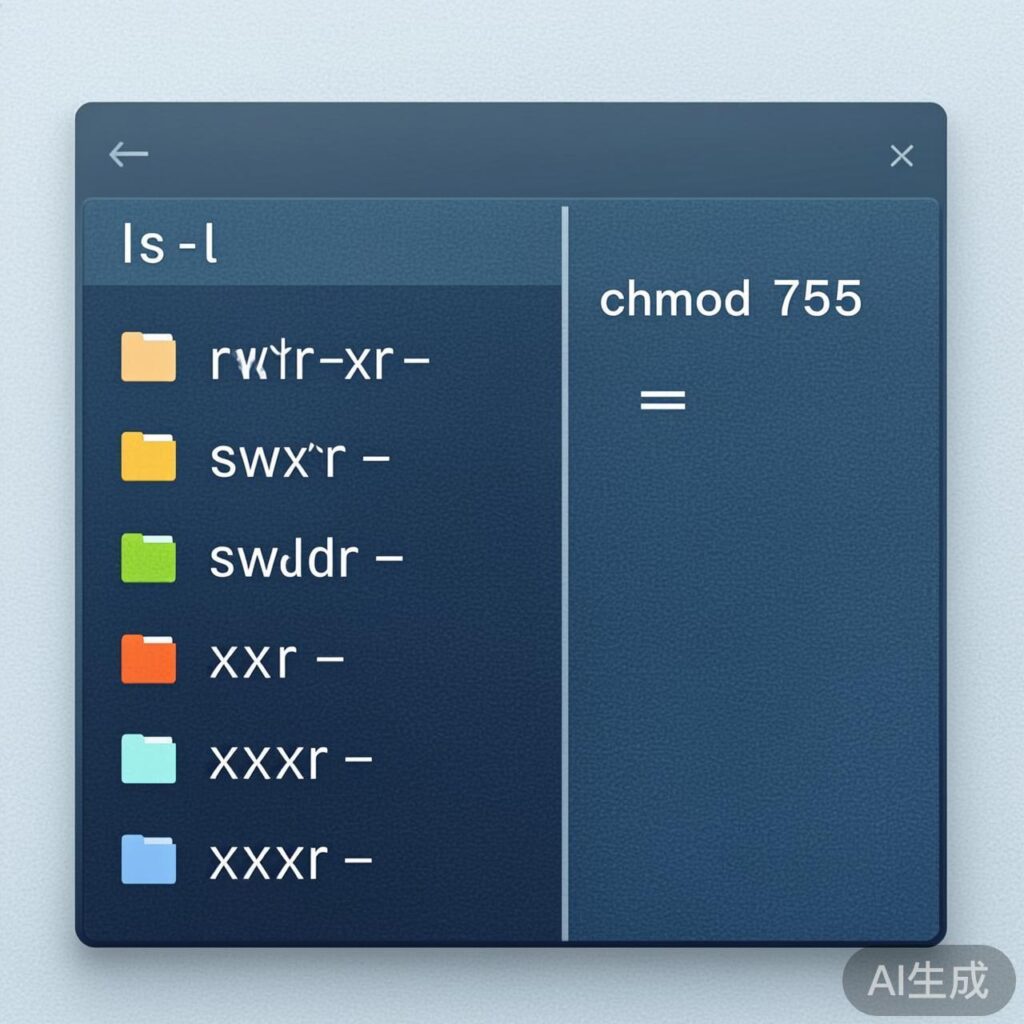
Viewing File and Directory Permissions
In Linux, the ls -l command displays detailed file information, including permissions.
Viewing File Permissions
ls -l filenameViewing Directory Permissions
To view a directory's own permissions (not its contents), use the -d option.
ls -ld directorynameModifying File and Directory Permissions (chmod)
The chmod command changes the access permissions of a file or directory. Its basic syntax is:
chmod [options] mode file_or_directoryA common option is -R (recursive, to modify a directory and all its contents).
Numeric (Octal) Notation
Permissions are represented by three or four octal digits, corresponding to the owner (u), group (g), and others (o). Each digit is the sum of the values for r(4), w(2), and x(1).
- Common Examples:
chmod 600 file: Owner can read and write (rw-------).chmod 644 file: Owner can read/write, group and others can only read (rw-r--r--).chmod 700 file: Owner has full read, write, execute (rwx------).chmod 755 directory: Owner has full permissions, group and others can read and execute (rwxr-xr-x). Common for directories.chmod 777 file_or_dir: All users have full permissions (rwxrwxrwx). Very low security, not recommended.
Symbolic Notation
Syntax: chmod [who][operator][permissions] file_or_directory
1. Who (User Class)
u: File owner (user)g: Users in the file's group (group)o: Other users (others)a: All users (all). This is the default.
2. Operator
+: Add the specified permissions-: Remove the specified permissions=: Set the exact permissions, removing any not mentioned
3. Permissions (Mode)
r: Read permissionw: Write permissionx: Execute permission (for files) or access/traverse permission (for directories)X: Special execute; grants x only if the target is a directory or already has execute permission for some user.s: Set user ID (SUID) or group ID (SGID).t: Sticky bit, commonly used on directories like /tmp.
Symbolic Notation Examples
# Add execute permission for all users
chmod a+x script.sh
# Remove write permission for group and others
chmod go-w document.txt
# Set permissions: owner=rwx, group=rx, others=none
chmod u=rwx,g=rx,o= file
# Recursively add group write to a directory and its contents
chmod -R g+w projects/
Key Points and Best Practices
- Permission Differences: For files,
xmeans executable. For directories,xmeans you can enter (cd) or access metadata. - Directory Read Permission: A directory's
rpermission allows listing its contents (withls), but you also needxto access details of files inside. - Security Advice: Follow the principle of least privilege. Avoid using
777or666casually. Scripts often need755, config files644, private files600. - Using sudo: To modify system files or files you don't own, prefix the command with
sudofor administrator privileges.