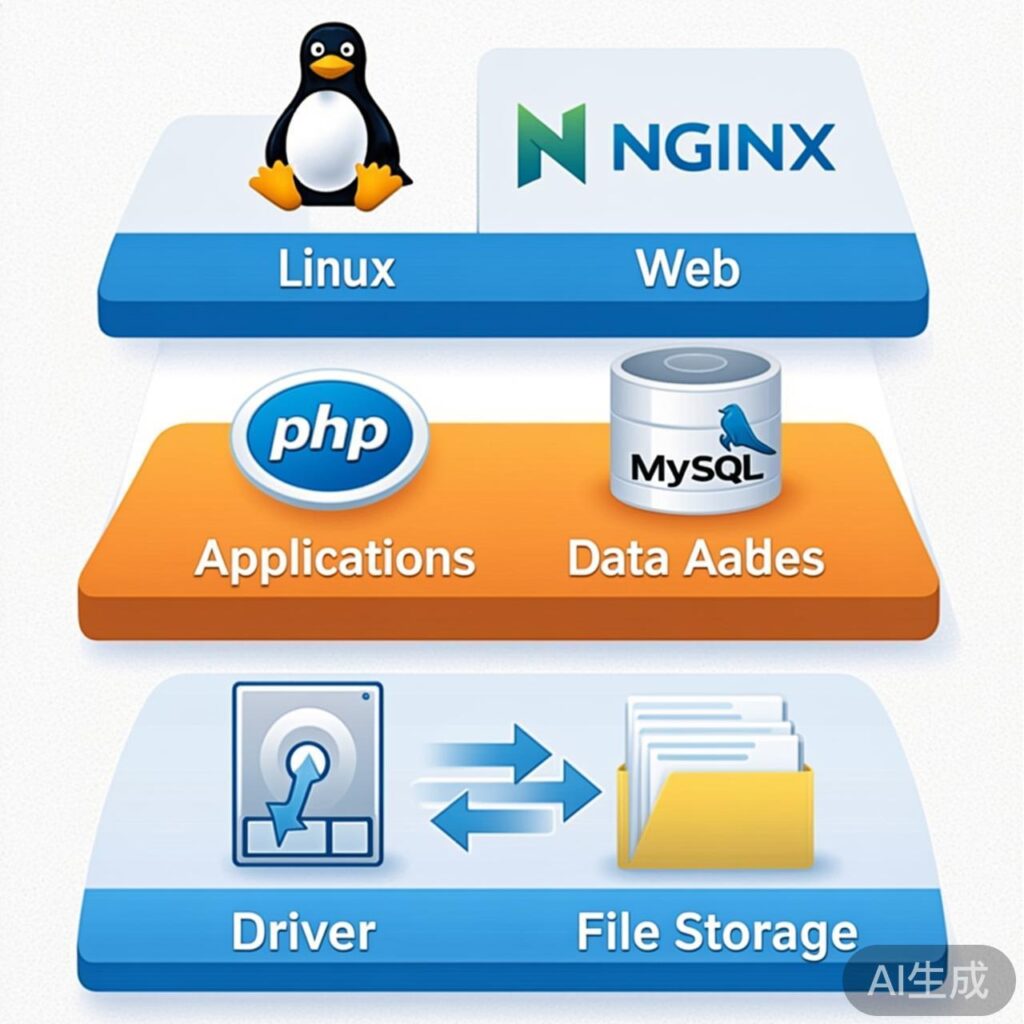
Preparation: Launch Instance and Attach Storage
1. Launch an Amazon Linux AMI instance via the AWS Console. A root volume (e.g., /dev/xvda or /dev/sda1) is created by default; you can customize its size.
2. For website data, it's recommended to add an additional EBS data volume (e.g., 10 GB). If added after instance launch, attach the volume to your instance in the EC2 Console.
Initial Server Configuration
3. Connect to your EC2 instance via SSH.
4. Set a password for the root user (Amazon Linux disables root password login by default; this step facilitates su switching later):
sudo passwd root5. Switch to the root user:
su rootMount the New Data Disk
6. Check currently mounted filesystems to see if the new data disk is auto-mounted:
df -h7. If the new disk isn't listed, view all disk devices to identify its path (e.g., /dev/xvdb):
fdisk -l8. Partition the new data disk (using /dev/xvdb as an example):
fdisk /dev/xvdbIn the fdisk interactive prompt, enter: n (new partition), p (primary), 1 (partition number), press Enter twice (default start/end sectors), then w to write and exit.
9. Run fdisk -l again; you should now see the new partition /dev/xvdb1.
10. Format the new partition with the ext4 filesystem:
mkfs.ext4 /dev/xvdb111. Create a directory for website files (LNMP's default location):
mkdir -p /home/wwwroot12. Configure auto-mount at boot. Edit /etc/fstab and add this line at the end:
/dev/xvdb1 /home/wwwroot ext4 defaults,nofail 0 0Note: The nofail option prevents boot failure if the data volume isn't attached—a recommended practice in cloud environments.
13. Verify the /etc/fstab configuration:
cat /etc/fstab14. Mount the new partition immediately:
mount -a15. Use df -h to confirm /home/wwwroot is mounted and shows the correct capacity.
Install LNMP Environment
16. Download and install the LNMP one-click installation package. Visit the LNMP official site for the latest version and commands. Example (refer to the official guide for current instructions):
wget http://soft.vpser.net/lnmp/lnmp1.9.tar.gz -cO lnmp1.9.tar.gz && tar zxf lnmp1.9.tar.gz && cd lnmp1.9 && ./install.sh lnmp17. In the installation script's interactive interface, select component versions. For better performance and compatibility, consider:
- MySQL: 5.7 or 8.0 (enable InnoDB engine)
- PHP: 7.4 or 8.0+ (PHP 5.3.17 is outdated and insecure; strongly recommend upgrading)
The installation may take some time.
Install eAccelerator (Optional, for Legacy PHP)
Important: eAccelerator is deprecated and incompatible with PHP 7.0+. For modern PHP (7.0+), use the official OPcache extension, usually enabled or included by default.
18. (Only for PHP 5.x environments) If using legacy PHP 5.x and want to install eAccelerator 0.9.6.1:
cd /path/to/lnmp_installation_dir
./eaccelerator.sh
19. For PHP 7.0+ users, verify and optimize OPcache by editing /usr/local/php/etc/php.ini. Example configuration:
[opcache]
opcache.enable=1
opcache.memory_consumption=128
opcache.interned_strings_buffer=8
opcache.max_accelerated_files=10000
opcache.revalidate_freq=60
After changes, restart PHP: lnmp php-fpm restart.
Summary and Best Practices
- Data Separation: Mount website files (
/home/wwwroot) and database data (/usr/local/mysql/var) on separate EBS volumes for easier backup, scaling, and migration. - Version Updates: Avoid end-of-life software (e.g., PHP 5.x, MySQL 5.5). Always choose stable, security-supported versions.
- Performance Caching: Use built-in OPcache instead of eAccelerator for modern PHP environments.
- Security: Configure firewalls (e.g., AWS Security Groups, iptables) after installation and keep system/software updated.