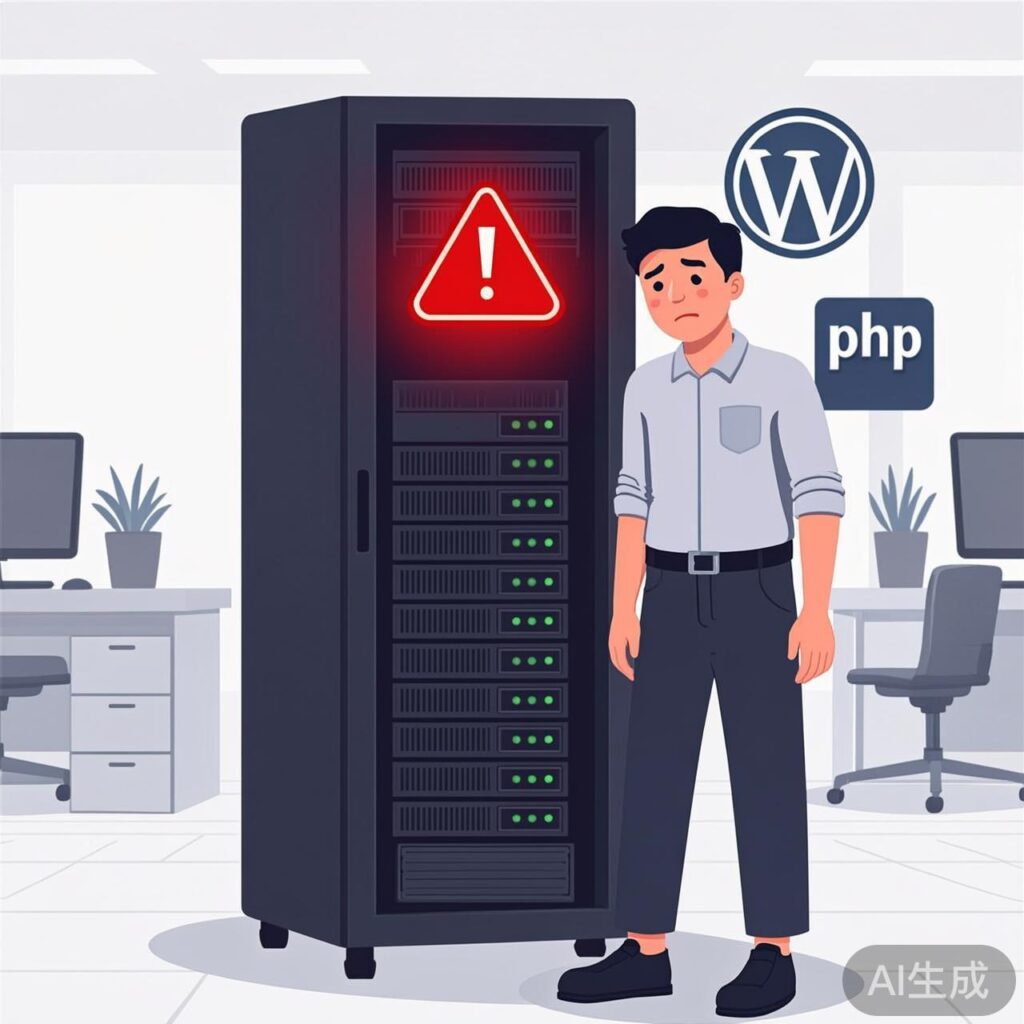
Problem Overview
After upgrading PHP to version 8.0 or higher on a Windows server (e.g., IIS), you may encounter a "500 Internal Server Error" when accessing your WordPress site. This error often does not display specific PHP error messages in the browser, making troubleshooting difficult. The root cause is typically related to PHP 8+ configuration changes, extension compatibility, or file permissions.
Resolution Steps
Step 1: Enable PHP Error Logging
First, enable detailed PHP error reporting to identify the issue.
- Locate your PHP configuration file (php.ini), usually in the PHP installation directory (e.g., C:PHP).
- Open php.ini with a text editor (e.g., Notepad).
- Find and modify the following key directives:
display_errors = On
display_startup_errors = On
error_reporting = E_ALL
log_errors = On
error_log = "C:phplogsphp_errors.log"- Ensure the directory specified in
error_log(e.g., C:phplogs) exists and that the IIS application pool identity (usually IIS AppPoolYourAppPoolName) or NETWORK SERVICE user has write permissions. - Save php.ini and restart the corresponding application pool or the entire IIS server via IIS Manager.
Step 2: Check PHP Extension Compatibility
PHP 8 removed some legacy extensions and changed certain functions. Extensions required by WordPress core or plugins may not be enabled or may no longer exist in PHP 8.
- In php.ini, verify the following common extensions are enabled (no semicolon
;at the line start):
extension=curl
extension=fileinfo
extension=gd
extension=mbstring
extension=mysqli
extension=openssl
extension=pdo_mysql- Pay special attention to
extension=mysql(legacy MySQL extension, removed in PHP 7.0) andextension=sqlsrv(if using SQL Server). Ensure you enable versions compatible with PHP 8. - Some third-party extensions (e.g., ionCube, Zend Guard Loader) may not yet support PHP 8. If used, temporarily comment them out (add
;at line start) or download PHP 8 compatible versions from the extension's official website.
Step 3: Enable WordPress Debug Mode
WordPress debug mode captures PHP errors and writes them to a file.
- Access your WordPress root directory via FTP or file manager and locate
wp-config.php. - Before the line
/* That's all, stop editing! Happy publishing. */, add the following code:
define( 'WP_DEBUG', true );
define( 'WP_DEBUG_LOG', true );
define( 'WP_DEBUG_DISPLAY', false );
This will generate a debug.log file in the wp-content directory to log errors without displaying them on the page.
- Save the file and refresh your site. Check the
wp-content/debug.logfile for error messages.
Step 4: Troubleshoot Theme and Plugin Conflicts
Outdated or incompatible WordPress themes and plugins are common causes of 500 errors.
- Temporarily switch the active theme to a default WordPress theme (e.g., Twenty Twenty-Four).
Method: Via FTP, rename your current theme folder (e.g.,wp-content/themes/your-themetoyour-theme.bak). WordPress will automatically fall back to a default theme. - If the error disappears after switching themes, your original theme is incompatible with PHP 8. Contact the theme developer for an update.
- If the error persists, try disabling all plugins.
Method: Via FTP, rename thewp-content/pluginsfolder toplugins.bak, then create a new emptypluginsfolder. Refresh your site. - If the error disappears after disabling plugins, move plugin folders back into the new
pluginsfolder one by one and refresh to identify the problematic plugin.
Step 5: Verify PHP FastCGI Settings (IIS)
IIS uses the FastCGI module to call PHP. Incorrect configuration can cause a 500 error.
- Open IIS Manager and select "FastCGI Settings" under the server node.
- Find the entry pointing to your PHP 8 executable (php-cgi.exe) and double-click to open it.
- Check the "Environment Variables" collection. Ensure at least the following variables are present (click "Add..." on the right):
- Name:
PHP_FCGI_MAX_REQUESTS, Value:10000 - Name:
PHPRC, Value:C:PHP(your php.ini directory)
- Click "OK" and restart the application pool.
Common Errors and Solutions
- Error: "Call to undefined function mysql_connect()" in the error log.
Solution: Your WordPress site or a plugin uses the deprecated mysql extension. WordPress core has used mysqli or PDO since version 4.5. You need to update or replace the plugin/theme code causing this error. - Error: "Allowed memory size exhausted".
Solution: Increase thememory_limitvalue in php.ini, e.g., to256Mor512M. - Error: Blank site or partial functionality issues after upgrade.
Solution: Clear WordPress object cache and browser cache. Delete cache folders likecache,w3tc-config(if using W3 Total Cache) within thewp-contentdirectory.
Summary and Prevention
Before upgrading PHP on a Windows server, consider these preventive measures:
- First upgrade in a local or staging environment to verify theme, plugin, and custom code compatibility.
- Back up your website files and database.
- Check WordPress official documentation and plugin/theme changelogs to confirm PHP 8 support status.
- After upgrading, immediately enable error logging and debug mode as described in this guide to quickly identify issues.
By systematically checking configuration, extensions, core files, and third-party code, you can effectively resolve WordPress 500 Internal Server Errors caused by PHP 8+ upgrades and ensure stable site operation on the new PHP version.