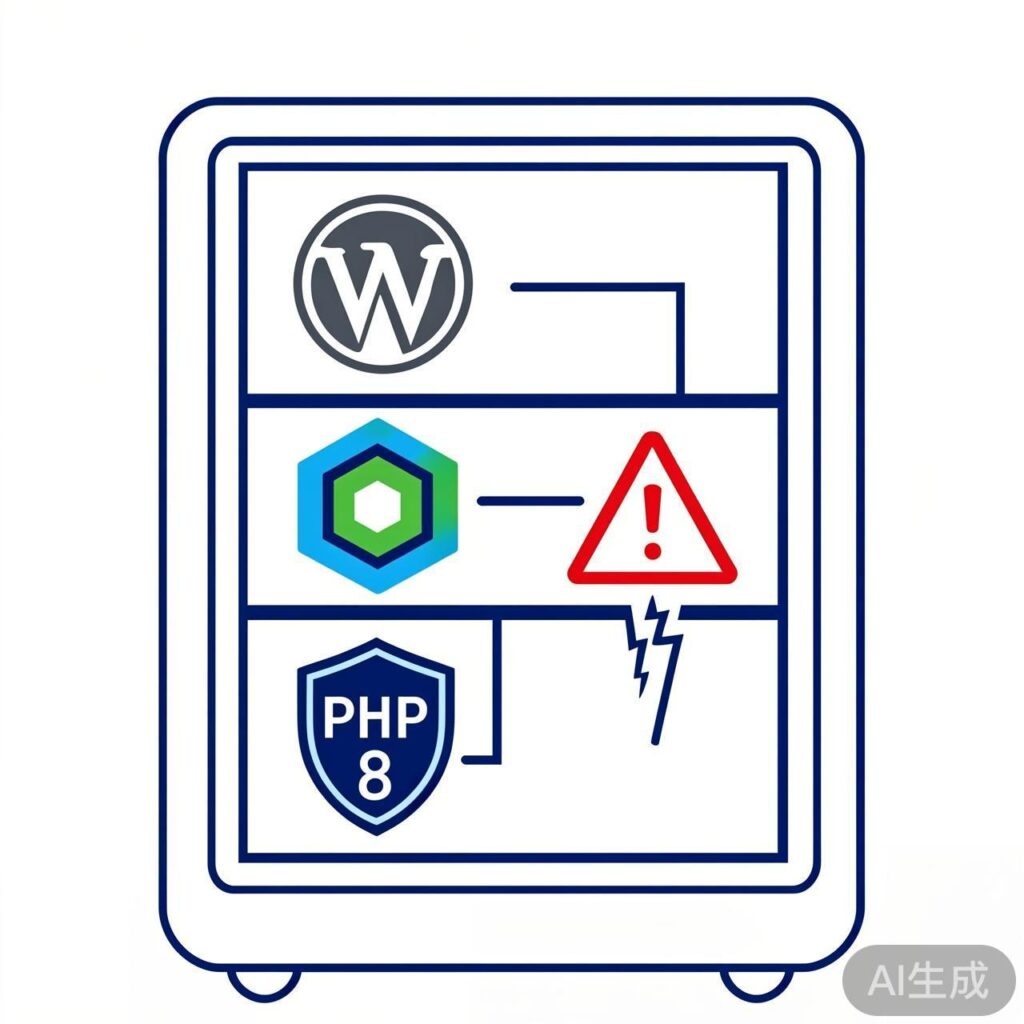
What is a WordPress 503 Error?
An HTTP 503 "Service Unavailable" error indicates your web server (Nginx) is currently unable to handle the request. This is typically a server-side issue, not a client problem, often due to temporary resource unavailability or overload. Even with sufficient memory, OPCache, and Memcached enabled on an Ubuntu 22.04 + Nginx + MySQL 8 + PHP 8 stack, this error can still occur.
Common Causes and Troubleshooting Steps
1. PHP-FPM Process Exhaustion or Crash
This is the most common cause. The PHP-FPM process pool can be exhausted due to high traffic, script timeouts, or memory leaks, preventing Nginx from forwarding requests to PHP.
Troubleshooting:
- Check PHP-FPM status:
sudo systemctl status php8.x-fpm(replace 8.x with your version, e.g., 8.1, 8.2). - Review PHP-FPM error logs:
sudo tail -f /var/log/php8.x-fpm.logor/var/log/php-fpm/error.log. - Check Nginx error logs:
sudo tail -f /var/log/nginx/error.log.
Solutions:
- Adjust PHP-FPM pool configuration: Edit
/etc/php/8.x/fpm/pool.d/www.conf(or your custom pool file).pm = dynamic pm.max_children = 50 # Adjust based on server RAM (suggestion: RAM / per-process memory) pm.start_servers = 5 pm.min_spare_servers = 5 pm.max_spare_servers = 10 pm.max_requests = 500 # Restart child processes after handling requests to prevent memory leaks request_terminate_timeout = 300 # Maximum PHP script execution time (seconds) - Restart PHP-FPM:
sudo systemctl restart php8.x-fpm.
2. Database Connection Issues
MySQL 8 may exhaust its connection limit or respond slowly, causing WordPress requests to time out.
Troubleshooting:
- Log into MySQL and check current and maximum connections:
SHOW VARIABLES LIKE 'max_connections'; SHOW STATUS LIKE 'Threads_connected'; - Check MySQL error log:
sudo tail -f /var/log/mysql/error.log.
Solutions:
- Adjust MySQL configuration (e.g.,
/etc/mysql/mysql.conf.d/mysqld.cnf):[mysqld] max_connections = 100 # Adjust based on server load wait_timeout = 60 # Non-interactive connection timeout (seconds) interactive_timeout = 28800 # Interactive connection timeout (seconds) - Optimize WordPress database queries and ensure persistent object caching (like Memcached) is properly configured.
3. Nginx Configuration or Resource Limits
Nginx's own worker processes or connection limits may be reached.
Troubleshooting:
- Check Nginx error logs for messages like
connect() to unix:/run/php/php8.x-fpm.sock failed (11: Resource temporarily unavailable).
Solutions:
- Adjust Nginx main configuration file
/etc/nginx/nginx.conf:worker_processes auto; # Typically set to number of CPU cores worker_connections 1024; # Maximum connections per worker process keepalive_timeout 65; client_max_body_size 64M; # Adjust based on upload needs - Ensure fastcgi buffer settings are appropriate (usually in site configuration):
fastcgi_buffers 16 16k;
fastcgi_buffer_size 32k;
fastcgi_connect_timeout 60;
fastcgi_send_timeout 300;
fastcgi_read_timeout 300;
4. Memory and Cache Configuration Conflicts
Even with OPCache and Memcached enabled, misconfiguration can cause issues.
Check OPCache:
- Review PHP OPCache configuration (
/etc/php/8.x/fpm/php.inior/etc/php/8.x/fpm/conf.d/10-opcache.ini):opcache.enable=1 opcache.memory_consumption=128 # Allocated memory, adjust based on server opcache.interned_strings_buffer=8 opcache.max_accelerated_files=10000 opcache.revalidate_freq=2 opcache.fast_shutdown=1
Check Memcached:
- Ensure Memcached service is running:
sudo systemctl status memcached. - Confirm WordPress is correctly configured to use Memcached via a plugin (like "Memcached Object Cache"). Incorrect setup can cause connection failures and add overhead.
5. System Resources and Firewall Limits
System-level restrictions can also trigger 503 errors.
- Check system logs:
sudo dmesg | tail -20orsudo journalctl -xefor OOM (Out of Memory) killer records. - Check file descriptor limits:
ulimit -nto view current limit. High-traffic sites may need an increase. Edit/etc/security/limits.conf:* soft nofile 65536 * hard nofile 65536 - Check firewall/security groups: Ensure no rules are inadvertently blocking local service communication (e.g., between PHP-FPM and Nginx via Unix Socket or 127.0.0.1).
Quick Diagnostic Process
- Monitor logs in real-time: Tail both Nginx and PHP-FPM error logs while attempting to access the page causing the 503 error. Observe any error output.
- Check service status: Verify Nginx, PHP-FPM, MySQL, and Memcached services are all
active (running). - Simplify for testing: Temporarily disable all WordPress plugins (by renaming the
wp-content/pluginsdirectory) and switch to a default theme (like Twenty Twenty-Four) to rule out plugin or theme code issues. - Monitor resources: When the 503 occurs, quickly run
top,htop, orfree -mto observe CPU, memory, and process status.
Summary
In the described environment, frequent WordPress 503 errors are most likely caused by PHP-FPM process pool configuration being insufficient for concurrent requests, followed by database connection bottlenecks or communication issues between Nginx and PHP-FPM. Start by adjusting PHP-FPM's pm.max_children, pm.max_requests, and timeout settings, and carefully review the relevant log files—this is the most direct and effective way to pinpoint the problem.