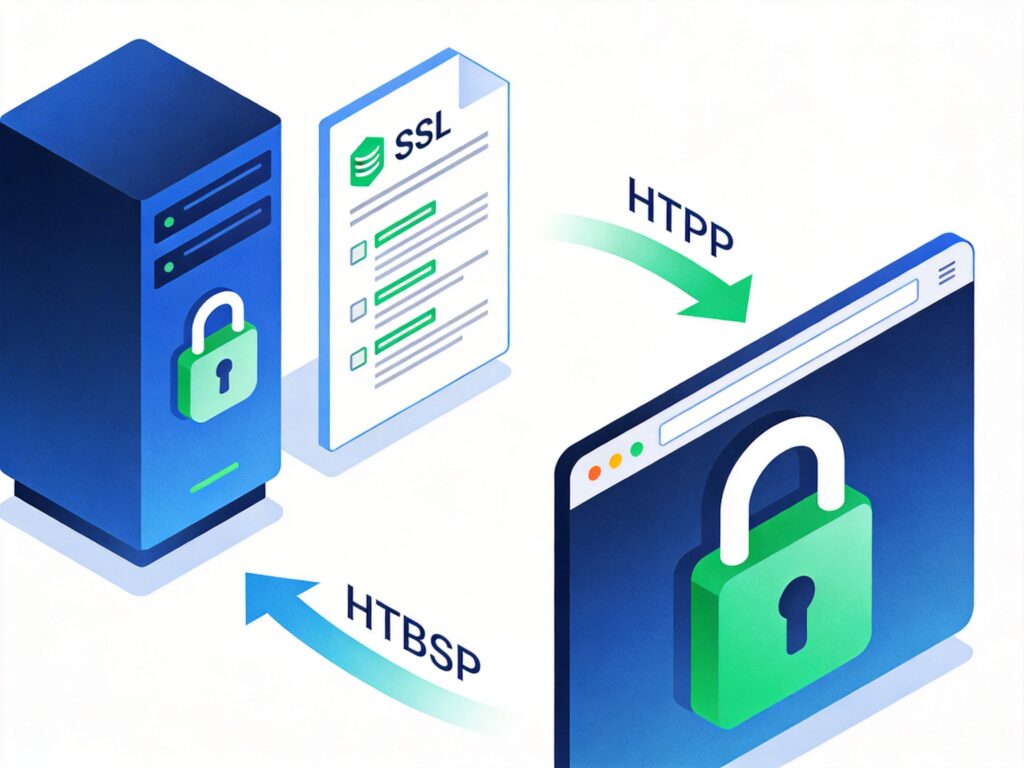
How to Configure an SSL Certificate on an Nginx Server
Configuring an SSL certificate for your Nginx server enables HTTPS encrypted access, significantly improving website security. The process is essentially the same whether you use a paid or a free SSL certificate. This guide provides detailed steps and important considerations.
Step 1: Modify the Nginx Configuration File
First, edit your Nginx configuration file (typically nginx.conf or a site-specific file in /etc/nginx/sites-available/). The goal is twofold:
- Redirect HTTP (port 80) requests to HTTPS (port 443).
- Enable SSL in the HTTPS server block and specify the paths to your certificate and private key.
Here is a standard configuration example:
server {
    listen 80;
    server_name www.yourdomain.com;
    return 301 https://$server_name$request_uri;
}

server {
    listen 443 ssl;
    server_name www.yourdomain.com;
    root /var/www/html;

    ssl_certificate /etc/ssl/certs/your_domain_bundle.crt;
    ssl_certificate_key /etc/ssl/private/your_domain.key;

    # Optional SSL optimizations
    # ssl_protocols TLSv1.2 TLSv1.3;
    # ssl_ciphers HIGH:!aNULL:!MD5;
}
Configuration Notes:
server_name: Replace with your actual domain name.root: Replace with the path to your website's root directory.ssl_certificate&ssl_certificate_key: Point to the full paths of your SSL certificate file (e.g., .crt, .pem) and private key file (.key).- The
ssl on;directive is deprecated. Uselisten 443 ssl;instead. - Using
return 301for redirection is more efficient and semantically clearer thanrewrite ... permanent;.
Step 2: Handle the Certificate Chain (Crucial)
After configuration, you might receive warnings about an incomplete certificate installation. This is often due to a missing intermediate certificate.
Browsers need a complete trust chain from your server certificate back to a trusted root certificate. If the intermediate certificate isn't sent, validation fails, causing security warnings.
Solution: Combine your server certificate with the intermediate (and sometimes root) certificate into a single bundle file.
General Method:
- Obtain the intermediate certificate file from your Certificate Authority (CA).
- Merge the certificates in this order: Your Domain Certificate first, then the Intermediate Certificate(s).
cat your_domain.crt intermediate.crt > /etc/ssl/certs/your_domain_bundle.crt - In your Nginx config, point
ssl_certificateto this bundle file (e.g.,your_domain_bundle.crt).
Note for Let's Encrypt/Certbot: The tool automatically handles this. The generated fullchain.pem file is the ready-to-use certificate bundle.
Step 3: Restart Nginx and Test
- Test the configuration syntax:
sudo nginx -t - If the test passes, reload Nginx to apply changes:
sudo systemctl reload nginx # or 'sudo service nginx reload' - Visit your site via HTTPS (
https://yourdomain.com). Check for the padlock icon in the browser's address bar. For a comprehensive check, use an online tool like SSL Labs' SSL Server Test.
Following these steps will successfully configure SSL on your Nginx server, enabling full HTTPS encryption. Free certificates (e.g., from Let's Encrypt) follow the same process, with automation tools simplifying issuance and renewal.