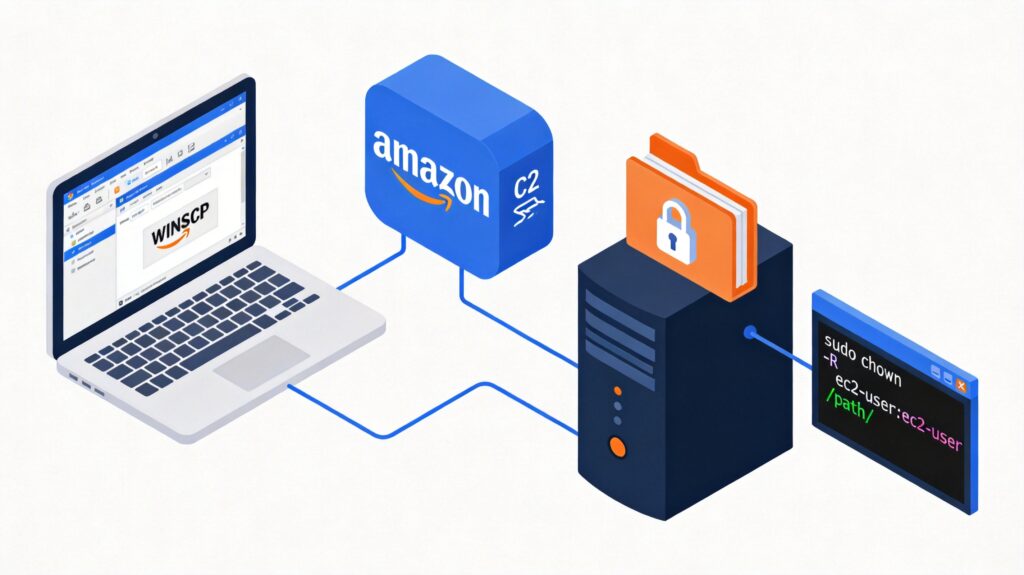
Problem Description
When connecting to an Amazon EC2 Linux instance via WinSCP, you may encounter errors preventing file uploads, downloads, or modifications due to insufficient permissions. Common error messages include "Permission denied" or "Cannot open file."
Solution: Modify File Ownership
If the issue is caused by the current user (e.g., ec2-user) lacking ownership of the target directory, use the chown command to change ownership to that user.
sudo chown -R ec2-user:ec2-user /path/to/your/directory/Command Explanation:
sudo: Execute command with superuser privileges.chown: Command to change file owner and group.-R: Recursively apply changes to the directory and all its contents.ec2-user:ec2-user: Set owner toec2-userand group toec2-user./path/to/your/directory/: Target directory path. Replace with your actual path (e.g.,/etc/httpd/conf/).
Important Security Note
Warning: Use
chown -Rcautiously, especially on critical system directories (e.g.,/etc,/usr,/var). Incorrectly changing ownership of system files may cause service failures or system instability. Always target specific directories rather than blindly modifying entire parent directories.
Other Common Causes and Solutions
1. Insufficient Directory Permissions
Even with file ownership, operations may fail if the directory lacks proper read/write/execute permissions for the user. Use chmod to adjust permissions:
sudo chmod 755 /path/to/your/directory/This grants the owner read, write, and execute (7), and the group and others read and execute (5).
2. SELinux Context Restrictions
On some Amazon Linux 2 or CentOS/RHEL images, SELinux in enforcing mode may block web server processes (e.g., httpd) from accessing certain directories. Check or temporarily adjust SELinux context:
# View SELinux context of directory
ls -lZ /path/to/your/directory/
# Change context to allow httpd read access (example for /var/www/html)
sudo chcon -R -t httpd_sys_content_t /var/www/html/
A more permanent solution involves adjusting SELinux policies or setting mode to permissive (consider security trade-offs).
3. Using Correct Connection Credentials
Ensure the username in WinSCP matches a valid user on the EC2 instance (default is often ec2-user or ubuntu for Amazon Linux). The private key file (.pem) should have read-only permissions for the current user locally (e.g., 400).
Summary of Steps
- Diagnose: Connect via SSH and use
ls -lato check file/directory ownership and permissions. - Apply Fix:
- For ownership: use
sudo chown. - For permissions: use
sudo chmod. - For web server access: check SELinux settings.
- For ownership: use
- Test: Retry the file operation in WinSCP.
Follow the principle of least privilege—grant only necessary permissions to maintain instance security.