Overview
Editing the Featured Image directly from the WordPress admin post list significantly improves content management efficiency. You can quickly set or replace thumbnails without clicking into each post's edit page, which is ideal for batch processing article covers.
Expected Result
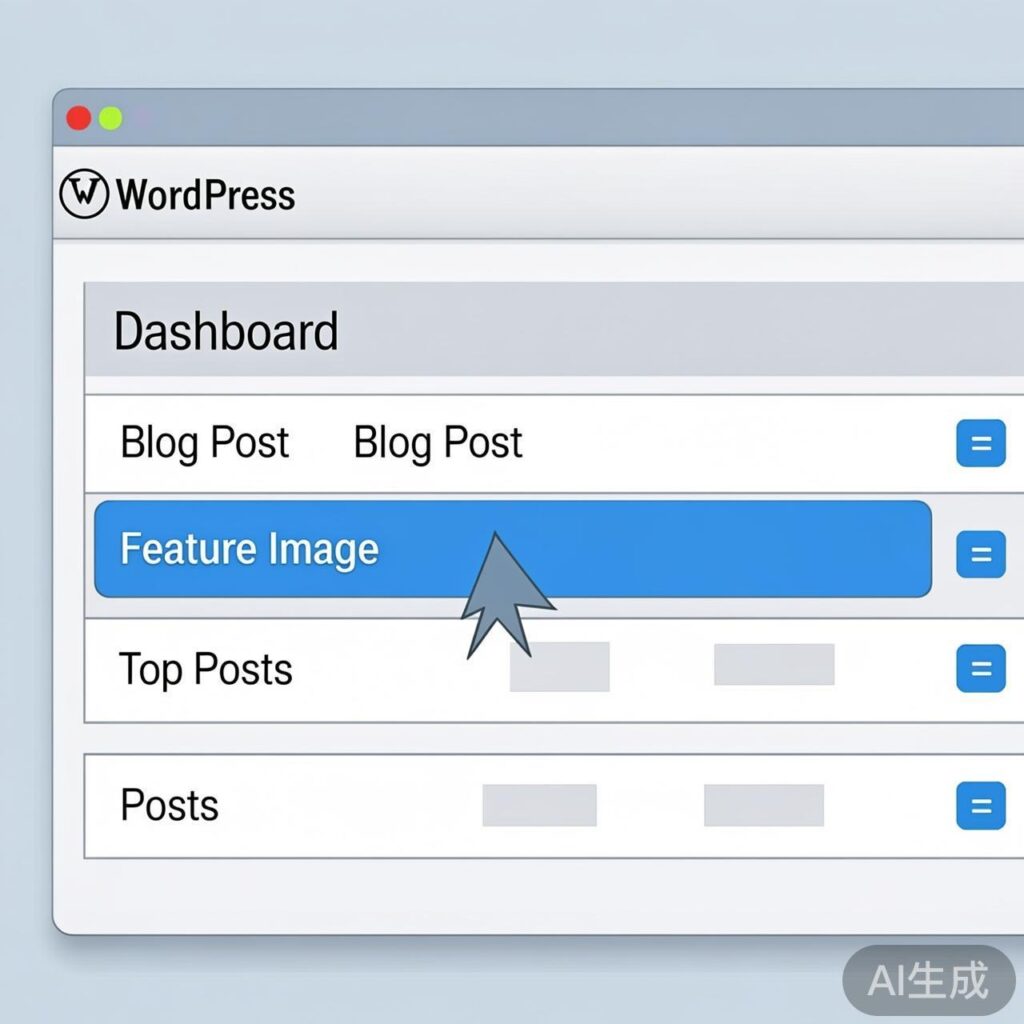
After implementation, a "Featured Image" column will appear in the post list, allowing you to upload or change images via the "Quick Edit" function. A demonstration is shown below:

Prerequisite: Enable Post Thumbnail Support
Ensure your WordPress theme supports post thumbnails. If not, add this code to your theme's functions.php file:
add_theme_support('post-thumbnails');Step 1: Add Featured Image Column to Post List
Add this code to your theme's functions.php. It adds a new "Featured Image" column to the admin post list.
// Add Featured Image column
aadd_filter('manage_post_posts_columns', 'lb_featured_image_column');
function lb_featured_image_column($columns) {
    $new_columns = array();
    foreach($columns as $key => $title) {
        if ($key == 'cb') $new_columns[$key] = $title;
        if ($key == 'cb') $new_columns['featured_image'] = 'Featured Image';
        if ($key != 'cb') $new_columns[$key] = $title;
    }
    return $new_columns;
}

// Populate the column
aadd_action('manage_posts_custom_column', 'lb_render_the_column', 10, 2);
function lb_render_the_column($column_name, $post_id) {
    if ($column_name == 'featured_image') {
        if (has_post_thumbnail($post_id)) {
            $thumb_id = get_post_thumbnail_id($post_id);
            echo '<img data-id="' . $thumb_id . '" src="' . wp_get_attachment_url($thumb_id) . '" />';
        } else {
            echo '<img data-id="-1" src="' . get_stylesheet_directory_uri() . '/placeholder.png" />';
        }
    }
}
Step 2: Add Admin Styles
Add CSS to style the new column and quick edit interface. Place this in functions.php.
add_action('admin_head', 'lb_custom_css');
function lb_custom_css() {
    echo '<style>
        #featured_image { width: 120px; }
        td.featured_image.column-featured_image img { max-width: 100%; height: auto; }
        #lb_featured_image .title { margin-top: 10px; display: block; }
        #lb_featured_image a.lb_upload_featured_image { display: inline-block; margin: 10px 0 0; }
        #lb_featured_image img { display: block; max-width: 200px !important; height: auto; }
        #lb_featured_image .lb_remove_featured_image { display: none; }
    </style>';
}
After these steps, refresh the post list to see the new column with thumbnails or placeholders.

Step 3: Implement Quick Edit Functionality
1. Load Media Upload Script
add_action('admin_enqueue_scripts', 'lb_include_myuploadscript');
function lb_include_myuploadscript() {
    if (!did_action('wp_enqueue_media')) {
        wp_enqueue_media();
    }
}
2. Add Field to Quick Edit Box
add_action('quick_edit_custom_box', 'lb_add_featured_image_quick_edit', 10, 2);
function lb_add_featured_image_quick_edit($column_name, $post_type) {
    if ($column_name != 'featured_image') return;
    echo '<fieldset id="lb_featured_image" class="inline-edit-col-left">
        <div class="inline-edit-col">
            <span class="title">Featured Image</span>
            <div>
                <a href="#" class="lb_upload_featured_image">Set Featured Image</a>
                <input type="hidden" name="_thumbnail_id" value="" />
            </div>
            <a href="#" class="lb_remove_featured_image">Remove Featured Image</a>
        </div>
    </fieldset>';
}
3. Add JavaScript Handling Logic
add_action('admin_footer', 'lb_quick_edit_js_update');
function lb_quick_edit_js_update() {
    global $current_screen;
    if (($current_screen->id != 'edit-post') || ($current_screen->post_type != 'post')) return;
?>
<script>
jQuery(function($) {
    $('body').on('click', '.lb_upload_featured_image', function(e) {
        e.preventDefault();
        var button = $(this);
        var custom_uploader = wp.media({
            title: 'Set Featured Image',
            library: { type: 'image' },
            button: { text: 'Set Featured Image' }
        }).on('select', function() {
            var attachment = custom_uploader.state().get('selection').first().toJSON();
            $(button).html('<img src="' + attachment.url + '" />')
                     .next().val(attachment.id)
                     .parent().next().show();
        }).open();
    });

    $('body').on('click', '.lb_remove_featured_image', function() {
        $(this).hide().prev().val('-1').prev().html('Set Featured Image');
        return false;
    });

    var $wp_inline_edit = inlineEditPost.edit;
    inlineEditPost.edit = function(id) {
        $wp_inline_edit.apply(this, arguments);
        var $post_id = 0;
        if (typeof(id) == 'object') $post_id = parseInt(this.getId(id));
        if ($post_id > 0) {
            var $edit_row = $('#edit-' + $post_id),
                $post_row = $('#post-' + $post_id),
                $featured_image_id = $('.column-featured_image', $post_row).find('img').attr('data-id');
            if ($featured_image_id != -1) {
                $(':input[name="_thumbnail_id"]', $edit_row).val($featured_image_id);
                $('.lb_upload_featured_image', $edit_row).html($('.column-featured_image', $post_row).html());
                $('.lb_remove_featured_image', $edit_row).show();
            }
        }
    }
});
</script>
<?php
}
Verification and Usage
After adding all code snippets to functions.php and refreshing the post list, you should be able to:
- See the "Featured Image" column.
- Click "Quick Edit" under a post title to set or remove the featured image directly.
- See the thumbnail update immediately after saving.
This tutorial enables efficient featured image management from the WordPress admin post list without additional plugins, ideal for editors and content managers.